
Published: November 17, 2026. Last updated: November 22, 2026.
To change your name on PayPal, sign in to your account on the PayPal website, open Settings, and select Change name. Choose the type of change you need, follow the instructions, and select Continue or Update Name. PayPal may ask for identification or other supporting documents if you’re making a legal or major name change.
PayPal allows minor spelling corrections, legal name changes after events such as marriage or divorce, and certain other verified name changes. However, the requirements differ by situation, and you cannot use a personal account name change to transfer your account to another person.
How to Change Your Name on PayPal: Step-by-Step
The official name-change process is available through PayPal’s website. You can use a computer or open the website in a mobile browser.
- Sign in to PayPal. Visit paypal.com and log in to your account.
- Open Settings. Click the Settings icon to access your account information.
- Select Change name. Find the name associated with your account and click Change name.
- Choose your name-change type. Select the option that matches your situation, such as correcting a spelling mistake or changing your legal name.
- Enter the required information. Follow the instructions and provide any supporting documents PayPal requests.
- Submit the change. Review the information and click Continue or Update Name, depending on the option displayed.
A minor spelling correction may be completed through the available website form. A legal or major name change may require further review before PayPal updates your account information.
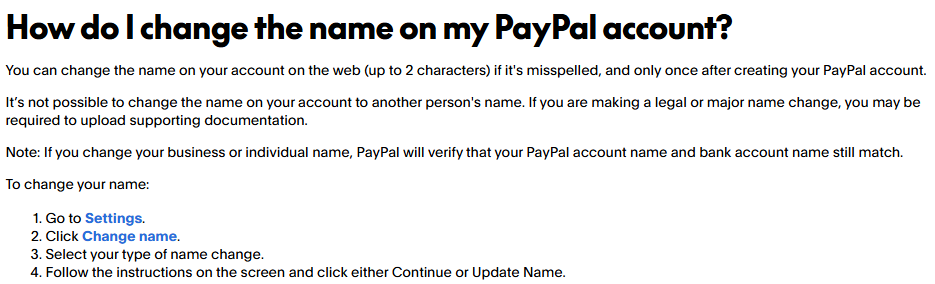
You can find these steps in PayPal’s official account name-change instructions.
Which Type of PayPal Name Change Do You Need?
Choosing the correct name-change category is important because PayPal applies different requirements to small corrections and changes to your legal identity.
| Type of change | When it applies | What to expect |
|---|---|---|
| Minor correction | A small spelling error in your existing name | Up to two characters, with a one-time correction limit |
| Legal name change | Marriage, divorce, or another legally recognized name change | Supporting documents may be required |
| Major name change | A substantial correction that exceeds the minor spelling limit | Identity verification or other supporting evidence may be required |
| Business name change | A verified change to an existing business’s name | Separate Business account procedure and possible bank re-verification |
How to Correct a Misspelled Name on PayPal
If you made a small typing mistake when creating your account, PayPal allows you to correct up to two characters in your name through its website. This minor correction is available only once after creating your PayPal account.
For example, if your registered name contains one incorrect letter, you may be able to correct it using the minor spelling option without going through the process required for a legal name change.
Open Settings → Change name, select the minor correction option, and follow the instructions. Check the spelling carefully before submitting, because PayPal limits this type of correction to one use.
If the change involves more than two characters, or you have already used the minor correction option, select the appropriate alternative or contact PayPal for assistance rather than trying to fit a larger change into the minor correction category.
How to Change Your Legal Name on PayPal
If your name changed legally because of marriage, divorce, or another recognized legal process, use PayPal’s legal name-change option.
After opening Settings → Change name, choose the legal name-change category and complete the instructions. PayPal may ask for evidence connecting your previous registered name to your new legal name.
Depending on the circumstances, that evidence may include a valid government-issued photo ID, marriage certificate, or another document establishing the legal change. PayPal determines which documents it needs for your particular request.
A legal name change is different from replacing the account holder with another person. PayPal may verify that the individual requesting the change is the original account owner.
What Documents Does PayPal Require for a Name Change?
PayPal may ask you to upload supporting documentation when changing your legal name or making a substantial correction. Not every name change requires the same documents.
If PayPal requests a photo ID, prepare it according to these requirements:
- Valid identification: Use a current, unexpired identity document accepted by PayPal.
- Both sides: Include the front and back of the ID when requested.
- Clear images: Make sure the text and photograph are readable, without blur, glare, or heavy shadows.
- Complete document: Keep all four corners visible and do not cover, crop, or obscure any required information.
- Additional evidence: Provide proof of the legal name change if PayPal specifically requests it.
Documents that are expired, difficult to read, or incomplete may not be accepted. If your submission is rejected, review the reason provided by PayPal and submit the correct information through your authenticated account.
Only upload identity documents through PayPal’s official account interface or a verified support process. Do not send copies of your identification to strangers or unfamiliar websites offering to change your PayPal name.
Can You Change Your PayPal Name in the Mobile App?
PayPal’s official account name-change instructions describe the process through its website rather than providing a separate verified name-change workflow inside the mobile app.
If you’re using a phone, open a web browser, visit PayPal.com, sign in, and follow the website instructions under Settings → Change name.
PayPal also provides a separate process for correcting certain personal information. For eligible personal accounts in the US, UK, and European Union, this is available through Settings → Data & Privacy → Correct your data.
This data-correction feature is not an unrestricted way to change your legal identity. PayPal may still require verification or supporting documents. See PayPal’s personal data correction instructions.
How to Change Your Business Name on PayPal
If you have a PayPal Business account, changing your company’s registered name follows a separate process from correcting an individual’s name.
To request a business name change:
- Sign in to your PayPal Business account.
- Open Account Settings and go to Business Information.
- Click Update next to your business name.
- Select Edit in the upper-right corner of your Business profile.
- Click Change under the business name and choose Your business name has changed.
- Follow the instructions to submit your request and any documents PayPal requires.
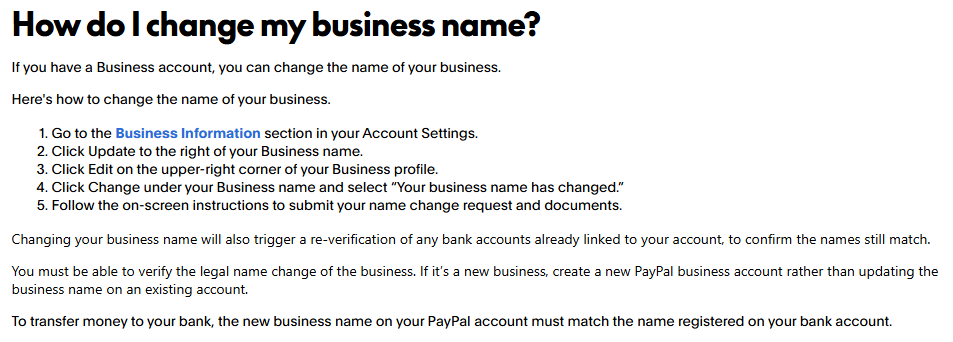
PayPal requires you to be able to verify the legal name change of the existing business. If you have created a completely new business, PayPal advises opening a new Business account instead of changing the name on an unrelated existing account.
Changing a business name can also trigger re-verification of linked bank accounts. The new business name must match the name registered with the bank for eligible transfers.
See PayPal’s official business name-change guide.
Changing the Name on Customers’ Card Statements
The name customers see on their credit or debit card statements is separate from your business’s legal registered name.
To update that statement name, PayPal directs Business account holders to Account Settings → Business Information, where they can edit the Credit Card Statement Name under their business information.
Changing this descriptor does not change the legal name of the business. PayPal provides separate credit card statement name instructions.
What Happens to Your Linked Bank Account After Changing Your Name?
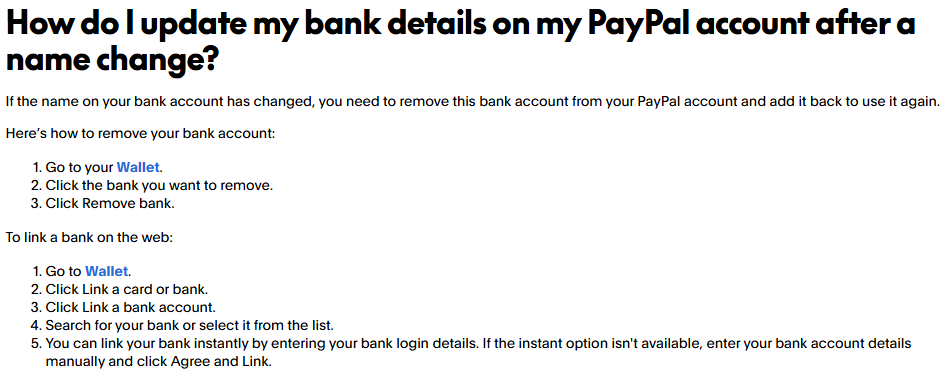
PayPal verifies that the account holder’s name matches the name registered with the linked bank account. If your bank account’s registered name has also changed, you need to remove the existing bank connection from PayPal and link it again.
To remove and reconnect the bank account on the PayPal website:
- Sign in and open Wallet.
- Select the bank account you need to update.
- Click Remove bank.
- Return to Wallet and click Link a card or bank.
- Choose Link a bank account and select your bank.
- Follow the available linking and confirmation instructions.
Depending on your bank, you may be able to link it instantly or manually. Manual linking may require additional confirmation before the bank account becomes available for payments.
If you have pending transfers or cannot remove the bank account, review the restriction shown by PayPal before making changes. Updating your PayPal name does not automatically update the records maintained by your bank.
For the complete process, see PayPal’s bank details instructions after a name change.
Why Won’t PayPal Let You Change Your Name?
If you cannot update your account name, the reason may involve the type of change, document verification, or account restrictions.
- The correction exceeds two characters: Use the appropriate legal or major name-change process instead of the minor spelling option.
- You already used the minor correction: PayPal limits this correction to one use after account creation. Contact support if you still need to correct an error.
- Documents were rejected: Make sure the identification is unexpired, readable, complete, and matches the information requested.
- The new name does not match your supporting evidence: Review your request and provide the correct legal documentation.
- The account has a limitation: Follow PayPal’s account-specific verification or resolution instructions. A name-change request does not bypass an existing limitation.
- The Change name option is missing: Confirm that you are using the correct account and website settings. Business accounts have a separate procedure for registered business names.
- The request is still being reviewed: Check your account notifications and respond to any requests for additional documents. Avoid submitting conflicting information.
PayPal does not publish a universal processing time for every type of name-change request. A simple correction and a legal change requiring identity verification may follow different review procedures.
If the issue remains unresolved, visit the official PayPal Help Center or use its authenticated support options for assistance with your specific account.
Frequently Asked Questions
Can I Change My PayPal Name to Someone Else’s Name?
No. PayPal does not allow personal account holders to change their registered names to another person’s name as a way to transfer account ownership. Business accounts have separate ownership-change procedures that require appropriate documentation.
Can I Change My PayPal.Me Username?
No. Once you create a PayPal.Me link or username, PayPal does not allow you to edit it. Changing the legal name associated with your PayPal account does not automatically change the PayPal.Me link. See the PayPal.Me FAQ for details.
Does Changing My PayPal Name Also Change My Email Address?
No. Your account holder name and registered email address are separate account details. A legal name change does not automatically change your email address. You can manage your email addresses separately through PayPal’s account settings.
Can I Change My PayPal Name Without Uploading an ID?
A minor spelling correction may be available through PayPal’s website without the documentation required for a legal name change. However, PayPal may request additional identity verification depending on the change and your account. There is no guarantee that a particular request will be processed without supporting documents.