
PayPal Automatic Payments are merchant authorizations that allow a business to request future payments after you approve PayPal as a payment method. They can cover subscriptions, recurring bills, scheduled payments, occasional purchases, or faster checkout with a saved business.
To manage them on the PayPal website, open Settings → Payments → Subscriptions and saved businesses or Automatic Payments, then select the merchant. From the merchant page, you can review the agreement, change its payment method, or cancel future payments.
Important: canceling a payment authorization in PayPal does not necessarily cancel your membership, trial, account, or service contract with the merchant. You may need to cancel with the merchant separately, and canceling does not automatically refund a completed charge.
Menu labels, available funding methods, cancellation rules, and dispute rights can differ by country and account. The general instructions below apply broadly, while country-specific rules are labeled clearly.
Last verified: October 24, 2026.
What is a PayPal automatic payment?
An automatic payment is an agreement between you and a merchant that lets the merchant request money through your PayPal account without requiring you to complete a new checkout for every charge.
PayPal may also describe these arrangements as:
- A subscription.
- A billing agreement.
- A recurring payment.
- A preapproved or preauthorized payment.
- A reference transaction.
- A saved or linked business.
The names are related, but an automatic payment is not always a fixed monthly subscription. Under the current U.S. PayPal User Agreement, an agreement can authorize a one-time payment scheduled in advance, sporadic future payments, recurring charges, or purchases made after PayPal has been saved as the payment method for that seller.
You usually create the agreement during a merchant checkout, when starting a free trial, or when choosing to save PayPal for future purchases. The merchant controls its own price, billing schedule, trial terms, service access, and cancellation policy. PayPal processes requests submitted under the authorization.
Where to find automatic payments in PayPal
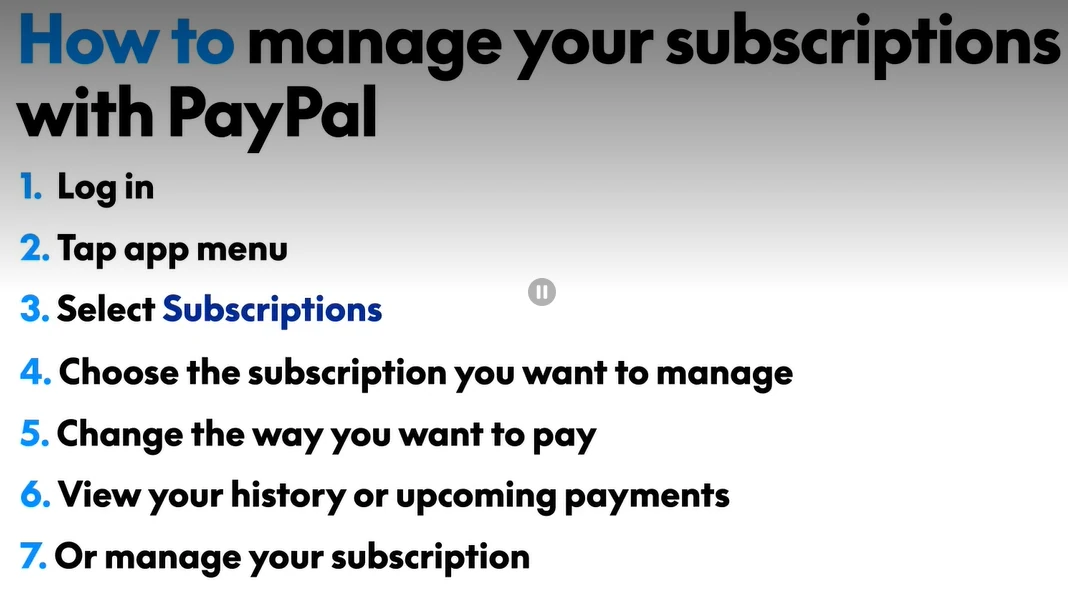
PayPal’s current automatic-payment instructions document the following website route:
- Sign in to PayPal through the official website.
- Select the Settings icon.
- Open Payments.
- Select Subscriptions and saved businesses or Automatic Payments.
- Select the merchant whose agreement you want to review.
The wording can vary by country, account, or interface version. Older articles may use labels such as Preapproved Payments, but you should follow the labels currently displayed in your own account.
PayPal also documents a U.S. app feature that lets eligible users link select merchants from a Subscriptions or Linked Businesses page. However, PayPal’s official help article currently gives the website route as the standard method for reviewing, changing, and canceling agreements. Use the website if the required management control is not clearly available in your app.
What to review on the merchant page
The details shown vary, but check all available information before making a change:
- The merchant’s displayed name and contact information.
- Whether the agreement is active, canceled, or inactive.
- The payment method assigned to that merchant.
- Any backup payment method shown.
- The billing terms, frequency, or next payment when displayed.
- The currency used for future charges.
- Previous transactions in PayPal Activity.
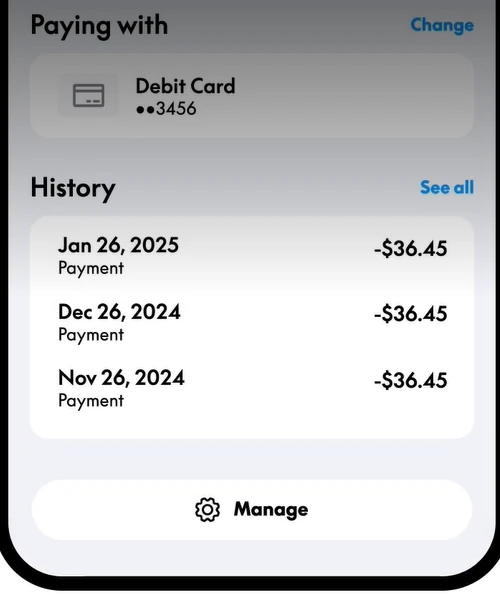
A merchant’s legal or PayPal display name may not be identical to the brand name you remember. Compare the amount, date, merchant contact details, receipts, and subscription records before deciding that a charge is unauthorized.
How to change the payment method for an automatic payment
The payment source assigned to a particular merchant can be different from the card or bank you selected as your general preferred PayPal method.
- Open Settings in your PayPal account.
- Select Payments.
- Open Subscriptions and saved businesses or Automatic Payments.
- Select the merchant.
- Select Change Payment Method.
- Choose an available method or select Link a new card or bank.
- Select Save.
- Reopen the agreement and confirm that the intended method is displayed.
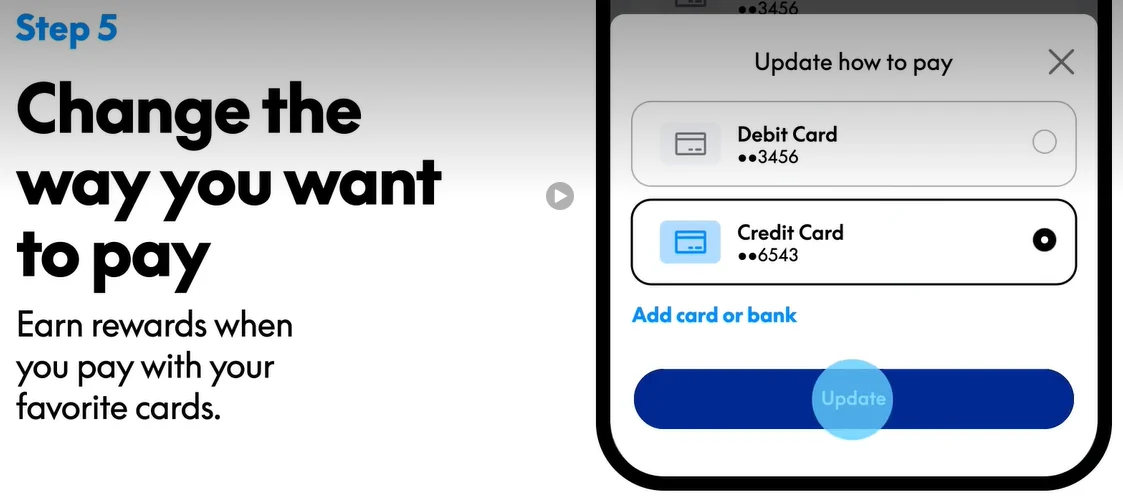
Before saving, check that the new card is not expired, the bank or card is eligible for that transaction, and the billing currency is correct. A merchant may also require you to update the payment method in its own account or subscription dashboard.
Changing the method does not guarantee that a payment already initiated by the merchant will switch to the new source. Review any pending transaction separately.
Why PayPal may use a different card, bank, or balance
PayPal allows separate payment preferences for ordinary online purchases and individual automatic-payment agreements. A method selected for one merchant can therefore be charged even when another card or bank is your general preferred method.
Depending on the agreement and applicable local terms:
- An available PayPal balance may be used before the agreement’s preferred method.
- The merchant-specific method may be prioritized over your general PayPal preference.
- A backup method may be charged when the selected method cannot cover the full amount.
- PayPal may receive updated card information from an issuer or another permitted source after a card is replaced or its expiration details change.
The precise funding order is country-specific. For U.S. accounts, the current User Agreement describes a backup-funding sequence and allows PayPal to charge a relevant backup method when the selected method is unavailable, expired, considered risky, or cannot cover the full transaction.
Replacing, unlinking, or allowing a card to expire is not a reliable way to cancel an automatic payment. PayPal’s U.S. agreement states that unlinking a payment method applies to transactions initiated afterward and does not remove PayPal’s authority to complete or re-present a transaction already authorized before the method was unlinked.
How to cancel a PayPal automatic payment
- Sign in directly at PayPal.
- Open Settings → Payments.
- Select Subscriptions and saved businesses or Automatic Payments.
- Select the merchant.
- Use the cancellation option displayed for the agreement.
- Review the warning and confirm the cancellation.
- Return to the merchant page and confirm that the agreement no longer appears active.
- Save any confirmation page or email for your records.
You do not normally need to close your PayPal account to stop one merchant’s authorization. Cancel the relevant agreement instead.
Cancel in PayPal and cancel with the merchant
| Action | What it normally affects |
|---|---|
| Cancel the automatic payment in PayPal | Stops future payment requests under that PayPal authorization, subject to timing, previously initiated transactions, and applicable terms. |
| Cancel with the merchant | Ends or changes the underlying trial, subscription, membership, product, account, or service according to the merchant’s contract. |
| Request a refund | Asks the merchant to return a completed payment. Cancellation alone does not create a refund. |
| Open a PayPal dispute | Starts a formal process for an eligible purchase or billing problem when it cannot be resolved directly. |
| Report unauthorized activity | Reports a payment or account action that you did not authorize. |
Complete both cancellation steps when the merchant’s terms require it. A PayPal authorization and a merchant contract are related, but they are not always the same agreement.
After canceling, check the merchant’s own account page, review any final-billing terms, retain both confirmations, and monitor the date on which the next charge would have occurred.
How late can you cancel?
Cancellation timing depends on the account country, transaction type, merchant agreement, and whether the next payment has already been initiated.
U.S. personal-account example: the current U.S. User Agreement says a recurring automatic payment can be canceled at least three business days before the next scheduled payment through account settings or PayPal support. Once the authorization is canceled, future automatic payments under that seller agreement should stop.
The same agreement also explains that you may still owe the merchant for a purchase already authorized but not completed, or for goods or services already received but not yet paid for.
For regularly recurring U.S. payments that vary in amount, the agreement generally provides for notice of the amount and transfer date at least 10 days in advance, unless the applicable arrangement allows notice only when the amount falls outside an agreed range.
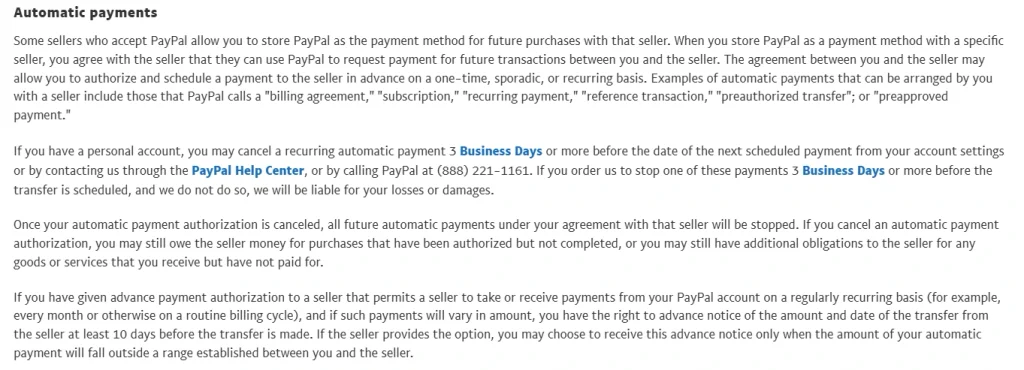
These are U.S.-specific terms. Do not assume the three-business-day or 10-day rules apply to an account registered elsewhere. Check your local PayPal User Agreement and the merchant’s cancellation policy.
Why you may be charged after canceling
A charge after cancellation is not automatically unauthorized. Work through these checks in order:
- Check the cancellation time. The merchant may have submitted the payment before you canceled.
- Check the transaction status. A pending or processing payment may have started while the agreement was active.
- Check the merchant account. You may have canceled PayPal authorization without canceling the merchant subscription or contract.
- Check for another agreement. A second account, merchant name, free trial, annual plan, or separate service may have its own authorization.
- Check the funding source statement. The merchant may have billed a card directly rather than through the canceled PayPal agreement.
- Compare the amount and billing period. The charge may be a final balance for service used before cancellation.
If the payment is recognized but unwanted, contact the merchant using the contact information in the PayPal transaction or automatic-payment page. Provide your cancellation confirmation and request an explanation or refund.
Canceling a completed payment is generally not available because the recipient has already received it. PayPal’s completed-payment guidance recommends contacting the seller first. If the matter cannot be resolved and the transaction is eligible, you may be able to open a dispute for the appropriate reason through the Resolution Center.
If a refund is issued, it normally returns to the original payment method. You can monitor its progress in PayPal Activity using the Refund Tracker and refund-status information where available.
What to do when an automatic payment is declined
A declined recurring payment can originate with the merchant, PayPal, the bank, or the card issuer. Do not assume the cause before checking the transaction message.
| Possible issue | What to check |
|---|---|
| Expired or replaced card | Open the merchant agreement and confirm the assigned payment method and current billing details. |
| Insufficient funds or credit | Check the selected method and any backup method. Also review the bank or card account directly. |
| Issuer or bank decline | Ask the issuer why it rejected the charge. PayPal may not receive the detailed reason. |
| PayPal account restriction | Check account notifications, the Resolution Center, and requests for confirmation or identity information. |
| Inactive agreement | Confirm whether the PayPal authorization or merchant subscription has been canceled. |
| Merchant billing problem | Review the merchant account and contact the merchant if the PayPal agreement looks correct. |
| Currency or regional limitation | Check whether the assigned method supports the transaction and billing currency. |
PayPal does not publish one universal retry schedule for every automatic payment. Merchants may apply their own retry, grace-period, late-fee, or service-suspension rules, so check the merchant’s terms instead of assuming PayPal will automatically retry the charge.
For U.S. bank-funded transactions, PayPal’s current agreement authorizes PayPal to re-present a transfer to the bank up to two times if the original transfer is rejected. Adding money to your PayPal balance while that re-presentment is pending does not stop the bank transfer from being attempted again. Other countries may follow different rules.
What to do about an unfamiliar automatic payment
Before reporting a charge as unauthorized, determine whether it belongs to an agreement you previously approved.
- Open PayPal directly and check Activity.
- Review Subscriptions and saved businesses or Automatic Payments.
- Compare the merchant’s PayPal name with receipts and subscription emails.
- Check for a free trial that converted into a paid plan.
- Check whether the renewal is annual rather than monthly.
- Ask whether an authorized family member used the account.
- Review the merchant’s own subscription dashboard.
- Confirm that the charge exists inside PayPal and is not only shown in a suspicious email or invoice.
If you recognize the merchant but disagree with the renewal, amount, duplicate charge, or service, contact the merchant and use a billing or purchase dispute when appropriate.
If you did not authorize the agreement or payment, report it promptly through PayPal’s official process:
- Open the PayPal Resolution Center.
- Select Report a problem.
- Select the payment and continue.
- Choose I want to report unauthorized activity.
- Follow the prompts and provide accurate information.
Do not classify a payment as unauthorized merely because you forgot the subscription, no longer want it, or disagree with a renewal you previously approved. Those situations normally require merchant contact, a refund request, or a billing dispute instead.
Protect yourself from fake subscription and cancellation messages
Scammers can send fake invoices, payment requests, renewal warnings, or cancellation notices designed to make you call a fraudulent support number or sign in through a fake page.
- Open the PayPal app or type PayPal’s address directly instead of using an unexpected message link.
- Confirm that the charge appears in Activity before responding.
- Do not call a phone number written in an unfamiliar invoice, payment note, or subscription email.
- Never share your password, passkey approval, PIN, or one-time verification code.
- Never install remote-access software at the request of someone claiming to cancel a payment.
- Contact PayPal only through its official Help Center or the authenticated app.
PayPal’s fake-message guidance warns that HTTPS and a padlock do not prove a website is genuine because fraudulent websites can also use encrypted connections.
Frequently asked questions
Are all PayPal automatic payments subscriptions?
No. A subscription is one form of automatic payment, but an agreement can also support a scheduled one-time charge, occasional purchases, recurring bills, or faster future checkout with a saved merchant.
Can I cancel an automatic payment through the PayPal app?
App options vary by country and interface. PayPal currently documents the website route for finding, changing, and canceling automatic payments. Use the website if the cancellation control is not clearly available in your app.
Does canceling an automatic payment produce a refund?
No. Cancellation normally addresses future payment requests. For a completed payment, contact the merchant and request a refund. If the issue cannot be resolved, review whether the transaction qualifies for a PayPal dispute or another remedy.
Why is an automatic payment not listed?
Check that you signed in to the same PayPal account used at checkout. Also review Activity and the merchant’s account. The merchant may be billing another PayPal account, charging a card directly, using a different business name, or using an agreement that is no longer active.
Does PayPal charge a separate fee for automatic payments?
PayPal does not necessarily charge the consumer a separate fee merely for maintaining an automatic-payment agreement. Costs depend on the underlying transaction, account country, merchant terms, funding source, and currency conversion. For example, the current U.S. consumer fee schedule lists no consumer fee for an ordinary purchase when no currency conversion is involved. Other markets and transaction types may differ.
Can an automatic payment use another currency?
Yes, when the merchant bills in another currency and the transaction is supported. If PayPal performs the conversion, the applicable exchange rate and conversion spread are determined when the automatic-payment transaction is processed. Review the agreement’s currency and your local fee information before the next charge.
Automatic-payment checklist
- Review your saved businesses and automatic payments periodically.
- Check the payment method assigned to each important merchant.
- Do not assume your general preferred method applies to every agreement.
- Review the trial end date, billing currency, renewal schedule, and merchant cancellation terms.
- Cancel with both PayPal and the merchant when necessary.
- Save cancellation confirmations and monitor the next expected billing date.
- Request a refund separately for a completed charge.
- Report only genuinely unauthorized activity through the Resolution Center.
- Verify every subscription or cancellation warning inside PayPal before calling or clicking.