
Published: October 26, 2026. Last updated: November 22, 2026.
To link a bank account or card to PayPal, sign in to your account and open Wallet. Select Link a card or bank to connect a bank account, or Link a debit or credit card to add a card. In the PayPal mobile app, open Accounts and select Add Banks and Cards.
Once you’ve entered the required details, PayPal may ask you to confirm that you own the bank account or card. The process depends on your payment method, country, and account settings. Here’s how to complete each step and resolve common problems.
What Do You Need to Link a Bank Account or Card to PayPal?
Before adding a payment method, make sure you can access your PayPal account and have the correct financial information available.
- For a bank account: You may need your online banking credentials for an authorized instant connection or your account details for manual linking. US bank accounts typically use an account number and routing number.
- For a debit or credit card: Have your card number, expiration date, security code, and billing address available.
- For verification: You may need to access your bank or card statement to check for small deposits or a confirmation code.
Your bank account should be registered in your name, and your card details must be accurate. PayPal also applies country-specific restrictions, so a bank or card that works in one country may not be supported in another.
How to Link a Bank Account to PayPal on the Website
You can connect an eligible bank account directly through PayPal’s website. For a US PayPal account, follow these steps:
- Visit paypal.com and sign in.
- Click Wallet.
- Select Link a card or bank.
- Choose Link a bank account.
- Search for your bank or select it from the available list.
- Follow the instructions to connect your bank instantly or enter your bank account details manually.
- If you’re linking manually, review the information and select Agree and Link when prompted.

PayPal supports instant bank linking for eligible banks. If that option is unavailable or you prefer another method, you may be able to select Link your bank another way and enter your account information manually.
In the UK, the website may show Wallet → Link bank instead. Follow the options displayed in your own account. You can review the relevant process in PayPal’s US bank-linking instructions or UK bank-linking instructions.
Instant Bank Linking vs. Manual Linking
The difference between these methods is how PayPal connects to and confirms your bank account.
- Instant linking: You follow an authorized bank authentication process. In the US, PayPal uses a third-party provider to confirm bank details and access balance or transaction information when needed. PayPal states that these permissions can be removed through your account settings.
- Manual linking: You provide your bank details and complete the confirmation method PayPal makes available. This may involve small deposits or a code shown on your bank statement.
Instant linking is not available for every bank or region. Manual linking may also require additional time before your bank account is ready for payments.
How to Link a Bank Account Using the PayPal App
To add a bank account through the PayPal mobile app:
- Open the PayPal app and sign in.
- Go to Accounts.
- Select Add Banks and Cards.
- Choose the option to add a bank account.
- Select your bank or enter the requested banking details.
- Follow the instructions to complete linking and any required confirmation.
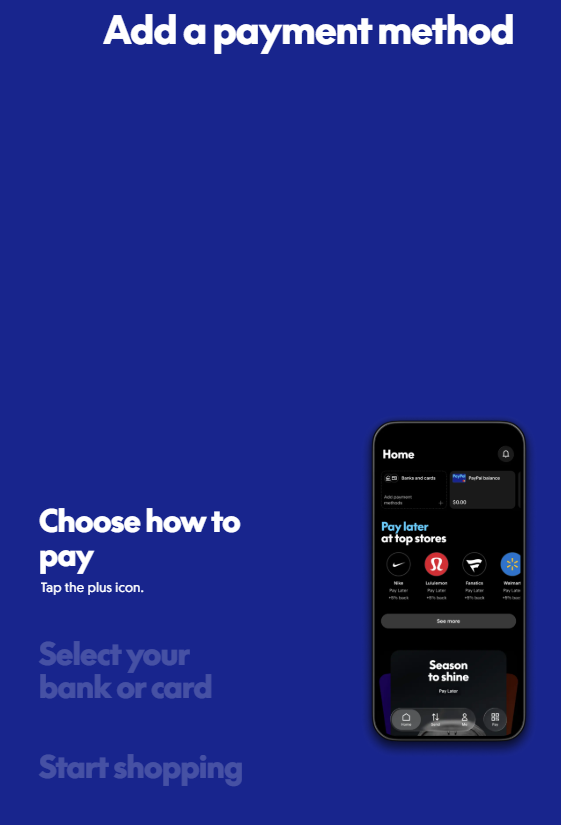
Some PayPal app versions display these controls under Wallet or Me → Accounts → Linked banks and cards. You may need to tap the plus (+) icon next to your existing payment methods.
Once your bank appears in the linked payment methods area, check whether PayPal requires confirmation before you can use it.
How to Add a Debit or Credit Card to PayPal
If you prefer to pay using a debit or credit card, you can add it directly to your PayPal Wallet. You do not necessarily need to link the bank account behind your debit card separately.
Add a Card on the PayPal Website
- Sign in to your PayPal account.
- Open Wallet.
- Click Link a debit or credit card.
- Enter the card information requested by PayPal.
- Check that the billing address matches your card issuer’s records.
- Follow the remaining instructions to finish adding the card.

PayPal may confirm your card automatically. If additional verification is needed, a confirmation option will appear. See PayPal’s official card-linking guide for the website procedure.
Add a Card on the PayPal Mobile App
To link a debit or credit card from your phone:
- Open the PayPal app.
- Select Accounts and then Add Banks and Cards.
- Choose Debit and Credit Cards or the equivalent card option.
- Enter the card details or scan the card if that feature is available.
- Provide any remaining details, including your security code and billing information.
- Tap Add Card or the equivalent button to complete the process.
Depending on the app version, you may also find the option under Wallet or Me → Accounts → Linked banks and cards. PayPal’s payment methods guide explains how to access the add-bank-or-card feature in the US app.
How to Confirm a Bank Account or Card on PayPal
Adding a payment method and confirming it are not always the same thing. PayPal may require an additional ownership check before you can use a particular bank account or card.
Confirm a Bank Account With Small Deposits
For manually linked US bank accounts, PayPal may send two small deposits to your bank. Each deposit is between $0.01 and $0.99 USD, and PayPal says they should appear within three business days.
After the deposits arrive:
- Sign in to PayPal and open Wallet.
- Select the bank account awaiting confirmation.
- Check your bank statement for the two deposits.
- Enter both amounts exactly as shown.
- Click Submit to complete confirmation.
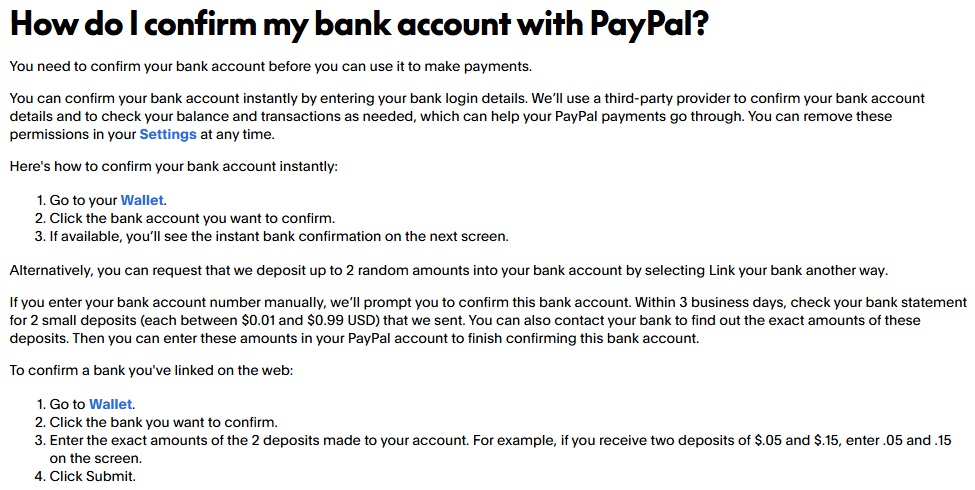
The small deposits are temporary and will be reversed. If they do not appear, check whether PayPal offers the option to resend them. If your bank combines the deposits into one transaction, PayPal recommends contacting support or trying instant confirmation.
Confirmation methods differ by country. For example, PayPal’s UK instructions describe a manual process involving a 1p deposit and a four-digit code, although two-deposit confirmation can also apply in some cases. Follow the method displayed in your account rather than entering deposit amounts or codes from another region’s procedure.
For more information, see PayPal’s US bank confirmation instructions and UK bank confirmation instructions.
Confirm a Debit or Credit Card
If PayPal displays a Confirm Card link next to your card, you need to complete the confirmation process. If that option is absent, PayPal says the card has already been confirmed automatically.
To confirm a card through the PayPal website:
- Open Wallet and select the card.
- Click Confirm Card.
- Review the information and click OK.
- Check your card statement for the PayPal confirmation charge and its associated four-digit code.
- Return to the card in your Wallet, enter the code, and click Confirm.
For US accounts, PayPal specifies a $1.95 USD confirmation charge. The code normally appears on the statement within two to three business days. PayPal refunds the charge after successful confirmation, although the card issuer may take up to 30 days from the refund date to credit the account.
If you request more than one code, use the latest code. These details come from PayPal’s card confirmation instructions. Amounts and processes may differ outside the US.
Why Can’t I Link My Bank Account to PayPal?
If PayPal refuses to connect your bank, check the error message before trying again. Several restrictions can prevent a successful link.
- Your name does not match: The account holder name on your bank account should match your PayPal account name. If your name has legally changed, update the relevant account records.
- The bank is unsupported: Certain online-only or prepaid banking services may not be compatible with PayPal. Confirm whether your institution supports the required connection.
- The bank is in an unsupported country: For US PayPal accounts, PayPal requires a US bank account. Other countries have their own eligibility rules.
- The bank is linked to another restricted account: An existing PayPal account limitation or negative balance can prevent linking the same bank elsewhere.
- You have reached a bank-linking limit: PayPal allows up to eight linked bank accounts at once for US accounts. Removing an unused eligible connection may help if you have reached that limit.
- Bank confirmation failed: Incorrect deposit amounts can cause the confirmation process to fail. PayPal says three incorrect attempts can disable and remove the bank connection, requiring assistance to reactivate it.
PayPal also restricts how many different PayPal accounts can use the same bank account over its lifetime. If the bank was previously linked elsewhere, check the applicable restriction rather than repeatedly attempting to add it.
If the problem continues, consult PayPal’s bank-linking troubleshooting guidance for the appropriate next steps.
Why Can’t I Add My Debit or Credit Card to PayPal?
A card can be rejected even when its details appear correct. The following are common reasons:
- Billing address mismatch: Check that the address entered in PayPal matches the address on your card statement. Contact your issuer if its records are incorrect or have not been updated after a move.
- Card authorization declined: PayPal may submit a temporary authorization to verify that the card is active. If the issuer rejects it, ask the issuer why the authorization failed.
- Card linked to another PayPal account: A card generally cannot be linked to two PayPal accounts simultaneously. Remove it from the previous account before trying again.
- Card limit reached: PayPal’s US Help Center allows up to four cards on an unverified account and up to 24 on a verified account. Remove an unused card if you have reached your applicable limit.
- Incorrect card security code: If PayPal blocks linking after repeated incorrect security code entries, contact PayPal for assistance instead of continuing to guess.
If you believe someone has linked your card to another PayPal account without permission, contact PayPal and your card issuer immediately.
For further assistance, see PayPal’s card-linking troubleshooting guide.
Bank Account vs. Card: What’s the Difference?
Linking a bank account and adding a card are separate processes. Choosing between them depends on how you want to pay and which features are available in your PayPal account.
| Feature | Bank Account | Debit or Credit Card |
|---|---|---|
| Connection type | Direct bank account connection | Individual payment card |
| Information required | Bank authentication or account details | Card details and billing address |
| Confirmation | Instant verification or a manual bank confirmation method | Automatic verification or a confirmation code when required |
| Common uses | Eligible bank-funded payments and supported account functions | Eligible card-funded payments |
| Restrictions | Bank and country eligibility rules | Issuer, card, and account eligibility rules |
If you only want to pay through PayPal, a supported card may meet your needs. If you need a direct bank connection for an eligible payment or transfer feature, link the bank account separately.
How to Check Whether Your Bank or Card Is Linked
After adding a payment method, return to Wallet on the PayPal website or the linked payment methods section of the mobile app.
- Open the list of your linked banks and cards.
- Select the payment method you recently added.
- Look for a pending confirmation request or other action PayPal requires.
- Complete any remaining steps before attempting a payment that requires the method.
On the website, you can also choose a preferred payment method by opening Wallet, selecting an eligible bank or card, and clicking Set as preferred.
A preferred method is not guaranteed to be available for every transaction. PayPal may use a backup payment method in certain circumstances, and automatic payments such as subscriptions can have separate funding preferences. Review the selected payment method before authorizing a transaction.
Frequently Asked Questions
Can I Use PayPal Without Linking a Bank Account?
Yes, in many regions you can use a supported debit or credit card to make eligible PayPal payments without linking a bank account. Some features, including particular transfers or withdrawals, may require additional verification or an eligible bank account.
Can I Link Both a Bank Account and a Card to PayPal?
Yes. PayPal supports multiple eligible payment methods, including bank accounts and debit or credit cards. The number you can add depends on your account status and applicable country-specific limits.
Does Adding a Debit Card Automatically Link My Bank Account?
No. A debit card and its underlying bank account are separate payment methods in PayPal. Adding the card does not automatically establish a direct bank account connection.
How Long Does It Take to Link a Bank Account to PayPal?
Instant linking may be completed during the connection process if your bank supports it. Manual linking can take longer because PayPal may require confirmation deposits or another verification method. For US accounts using the two-deposit method, PayPal says the deposits should arrive within three business days.
Can I Link a Bank Account From Another Country?
Not every foreign bank account is eligible. PayPal generally applies country-specific bank-linking rules. US PayPal accounts require a US bank account, while other regions may permit different arrangements. Check the eligibility requirements for the country where your PayPal account is registered.
Can I Remove a Linked Bank Account or Card?
Yes. On the PayPal website, open Wallet, select the relevant bank or card, and choose Remove bank or Remove card. Removal may be temporarily restricted when there are pending transactions or other account conditions. Review any subscriptions or automatic payments that use the method before removing it.
Does Linking a Bank or Card Automatically Add Money to PayPal?
No. Linking a payment method does not automatically transfer its funds into your PayPal balance. Eligible bank accounts and cards can be used as funding sources for supported payments, and some accounts offer separate options to add money to a PayPal balance.
Using Your Linked Bank Account or Card
Once PayPal has accepted your payment method and any required confirmation is complete, you can select it for eligible transactions. Before sending money or checking out, make sure the correct bank account or card is selected and review the payment details carefully.
If your payment method is linked but unavailable for a transaction, check for account restrictions, incomplete confirmation, or issuer limitations. You can find account-specific guidance through the PayPal Help Center.