
To send an invoice on PayPal from a computer, sign in and open Pay & Get Paid → Create an Invoice. Add your customer, describe the goods or services, enter the amount and payment terms, review the invoice, and select Send. You can also create one in the PayPal app through Request → Send an invoice to get paid.
You can email the invoice directly to the customer or share its payment link yourself. Creating and sending an invoice does not normally carry a separate charge, but PayPal deducts the applicable commercial transaction fee when the customer pays.
Availability varies by market. Account requirements, payment methods, fees, currencies, tax fields, and receiving options depend on where your PayPal account is registered. The paths below reflect PayPal’s current English-language instructions, but your account may use slightly different labels.
Last verified: October 24, 2026.
What you need before creating the invoice
Gather the transaction details before opening the invoice form. At minimum, you need to know who you are billing, what you provided, the amount due, and the currency.
- Your business or seller name and current contact information.
- The customer’s name and email address, unless you plan to share an invoice link instead.
- A clear description of each product or service.
- The quantity, number of hours, unit price, hourly rate, or agreed project amount.
- The invoice currency.
- The issue date, due date, and payment terms.
- Any applicable tax, discount, shipping charge, or deposit already received.
- A purchase-order number, project reference, contract reference, or customer note when relevant.
- Any useful supporting attachment that does not contain unnecessary sensitive information.
Do not place passwords, card details, bank credentials, government identity documents, or confidential customer information in the notes or attachments.
Do you need a PayPal Business account?
For regular commercial invoicing in the United States, use a PayPal Business account. PayPal’s current U.S. invoicing guidance says a Business account is required, and the U.S. User Agreement requires a Business account when the account is established primarily for business or commercial activity, even if the business is not incorporated.
Another PayPal product page says that a PayPal account is sufficient to access invoicing, so the feature may appear before or during account conversion. That does not override the account-type requirements for commercial activity. Outside the United States, check the account rules and feature availability for your country.
A sole proprietor, freelancer, or unincorporated contractor can generally operate through a Business account where PayPal supports that account type; incorporation is not necessarily required.
How to send an invoice on PayPal from a computer
PayPal’s current Help Center instructions use the following website route:
- Sign in through the official PayPal website.
- If your login contains both personal and business profiles, switch to the Business profile used for the sale.
- Open Pay & Get Paid.
- Select Create an Invoice.
- Select an existing customer or add a new customer.
- Add each product or service and enter its description, quantity or hours, and rate or price.
- Set the currency, invoice date, due date, and payment terms.
- Add tax, a discount, shipping, notes, terms, a purchase-order reference, or attachments when appropriate.
- If you are shipping a physical item or need the customer’s delivery address, select the available shipping-order option and add the shipping cost.
- Review your business identity and customer details.
- Preview the invoice and check the amount, currency, dates, descriptions, tax, shipping, and total.
- Select Send.
- Open your invoice list and confirm that the invoice was created and sent rather than left as a draft.
The exact arrangement of fields can vary. Use the labels displayed in your account rather than following an old screenshot that may show a previous interface.
How to send a PayPal invoice from the app
PayPal currently documents this path in its mobile app:
- Open the PayPal app and sign in.
- Switch to your Business profile if the app asks which profile you want to use.
- Tap Request.
- Tap Send an invoice to get paid.
- Enter who you are billing and what the customer is paying for.
- Add the amount, dates, currency, notes, and attachments that apply.
- Review the customer-facing invoice.
- Tap Send.
Some Business profiles may instead display an Invoicing or Create invoice shortcut. PayPal also offers a streamlined quick-invoice flow on supported mobile accounts. Use the website when you need a field or management option that is not visible in the app.
What information should a PayPal invoice include?
A useful invoice should make it easy for the customer to identify the transaction, confirm the amount, and understand when payment is due.
| Invoice field | What to enter |
|---|---|
| Seller details | Your business or professional name and accurate contact information. |
| Customer | The correct person or company and its billing email or address when relevant. |
| Invoice number | A unique reference that fits your recordkeeping process. |
| Description | A specific explanation of the goods, work, service period, milestone, or deliverable. |
| Quantity or hours | The number of units or billable hours where applicable. |
| Rate or price | The agreed unit price, hourly rate, or project amount. |
| Dates | The issue date, due date, and any relevant service or delivery period. |
| Currency | The currency agreed with the customer. |
| Adjustments | Supported tax, discount, shipping, or other agreed adjustments. |
| Terms | Concise payment, cancellation, refund, or late-payment terms that are valid for the transaction. |
| References | A purchase-order number, project code, contract reference, or customer reference when needed. |
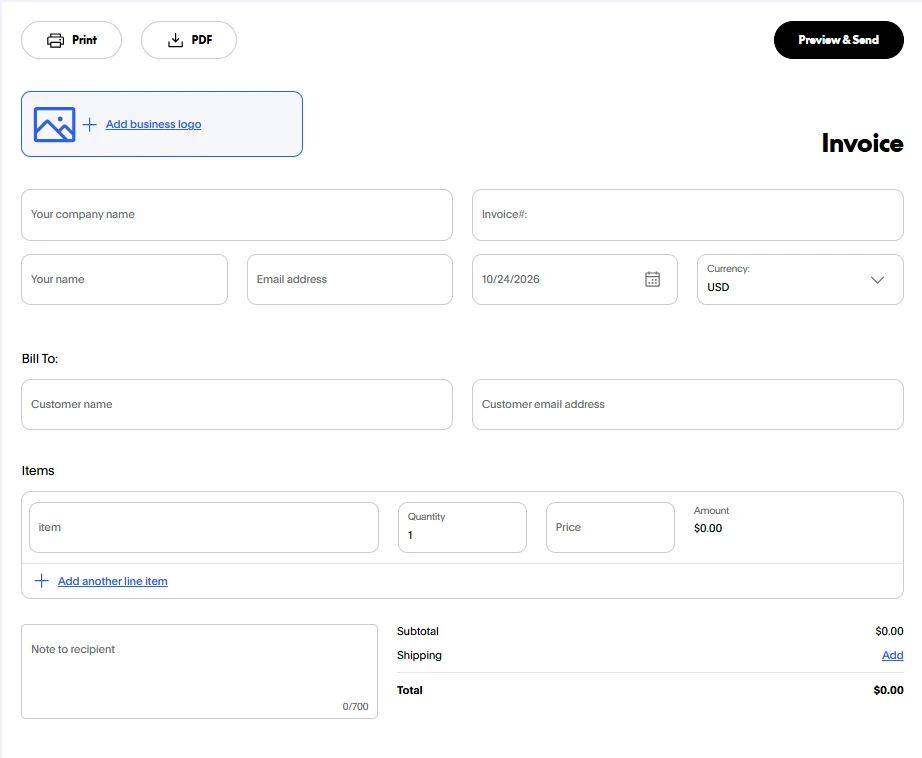
PayPal allows businesses to customize invoices with elements such as a logo, contact information, saved item details, notes, and a purchase-order number. Use customization to clarify the transaction, not to fill the invoice with unrelated promotional text.
Does a PayPal invoice satisfy tax and legal requirements?
Not automatically. PayPal supplies the invoicing tool, but it does not determine whether the resulting document satisfies every local sales-tax, VAT, GST, electronic-invoicing, language, numbering, record-retention, or commercial-document rule.
Check the requirements that apply to your business, the customer, and the place of supply. Depending on the jurisdiction, you may need a registration number, sequential invoice numbering, specific tax amounts, a legal address, required wording, or a government-approved electronic format.
How to send an invoice without the customer’s email
If you know the customer’s email address, enter it on the invoice and PayPal can send the customer an email containing the invoice link.
If you do not know the email address, create the invoice and use its shareable link. PayPal currently supports copying the link from the invoice list through the three-dot menu or from the invoice details page. Supported accounts may also offer a QR code for in-person or mobile sharing.
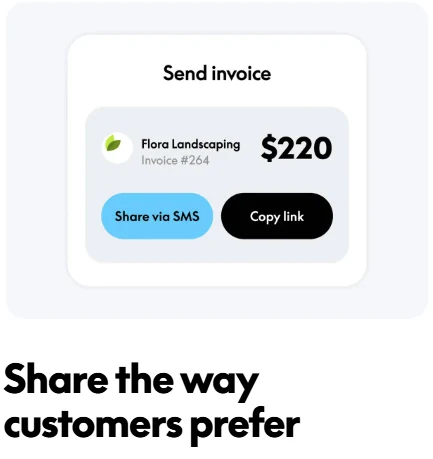
- Send the link directly to the intended customer through a trusted channel.
- Confirm that the customer recognizes your business name before paying.
- Do not post a customer-specific invoice link publicly unless the invoice was intentionally designed for public sharing.
- Check your invoice list before resending so that you do not create an accidental duplicate.
You may also be able to download or print an invoice for your records, but the available sharing and export options can differ by account and market.
What the customer sees and how they can pay
The customer receives an email or opens the link you shared. The invoice shows the seller, line items, amount, currency, dates, and other customer-facing terms you included.
A customer may be able to pay through a PayPal Wallet, debit card, credit card, or another locally available option. In supported U.S. transactions, options can also include Venmo, Apple Pay, Pay Later, or Pay by Bank. The exact choices depend on the seller’s setup, customer location, currency, device, transaction, and PayPal’s eligibility and risk checks.
The customer may not need a PayPal account. PayPal supports guest card payment for eligible invoices, but guest checkout is not guaranteed for every customer or transaction. PayPal may require the payer to sign in or create an account in some circumstances.
After a successful payment, PayPal sends a notification and records the transaction in your account. Do not rely solely on an email, customer screenshot, or message. Open the invoice, Activity, or Transaction Details and confirm the actual payment status and availability.
PayPal invoice fees
PayPal does not currently charge a separate fee merely to create or send an invoice. A commercial transaction fee applies when the customer pays.
The amount can depend on:
- The country in which your PayPal account is registered.
- The payment method selected by the customer.
- Whether the payment is domestic or international.
- The currency received and its fixed fee.
- Whether PayPal performs a currency conversion.
- Any special pricing or product-specific terms attached to the account.
Use the current PayPal Business fee page for a U.S. account or the official fee schedule for your own market. Do not apply a U.S. invoicing rate to an account registered elsewhere.
Do not automatically add a surcharge or increase the invoice by a fixed percentage to recover PayPal fees. Surcharges and fee passing can be affected by PayPal’s terms, card-network rules, the client contract, local law, and tax treatment.
How to send an invoice to an international customer
There is no separate international-invoice workflow in PayPal’s current instructions. Create the invoice, select the appropriate supported currency, add the customer, and send it by email or link.
Before sending, confirm:
- That your account can receive commercial payments from the customer’s country.
- That the invoice currency is the currency agreed with the customer.
- Who will bear any conversion or cross-border costs.
- Whether your account can hold the received currency or will convert it.
- Which tax, registration, language, or electronic-invoicing rules apply.
PayPal may display the invoice and notification in the customer’s preferred language when the customer has an account. For a customer without an account, the invoice may use the language associated with your account unless you select another supported language in the customer details.
Payment options vary by the recipient’s location. The fact that PayPal accounts exist in a country does not necessarily mean that every local account can receive every type of invoice payment.
Invoice, money request, estimate, or receipt?
| Tool | Best use |
|---|---|
| Invoice | An itemized request for payment that can include products or services, quantities, rates, dates, tax, discounts, shipping, terms, notes, and attachments. |
| Money request | A simpler request for an amount when detailed billing information is unnecessary. |
| Estimate | A proposed scope and price before the customer approves the work or purchase. It can be converted into an invoice where supported. |
| Receipt or paid invoice | A record showing that payment was received. Sending an invoice does not itself create a receipt. |
An invoice can support your records and provide transaction evidence, but it does not automatically create an enforceable contract in every jurisdiction. Keep the underlying agreement, messages, scope, delivery evidence, and payment record when they matter.
What happens after you send the invoice?
PayPal emails the customer when you entered an email address, and you receive confirmation that the invoice was sent. Your invoicing dashboard then lets you open the invoice and track its status and due date.
Depending on the invoice and current interface, you may be able to:
- Copy or resend the invoice link.
- Send a payment reminder.
- Schedule available automatic reminders.
- Edit an eligible unpaid invoice.
- Duplicate an invoice for a similar sale.
- Cancel an unpaid invoice.
- Record a payment received outside PayPal.
- Download or print a copy.
- Add shipment tracking after payment for a shipping order.
- Open Activity or Transaction Details to reconcile the invoice with its payment.
Editing, canceling, and refunding are different actions. Canceling an unpaid invoice stops that invoice from being used for payment; it does not reverse a completed transaction. To return a completed payment, use the refund process associated with the transaction.
How recurring PayPal invoices work
PayPal allows supported accounts to create a recurring invoice series with a weekly, monthly, yearly, or custom interval. You can send the first invoice immediately or schedule the series to begin later.
PayPal’s current Help Center says later invoices are issued according to the frequency you select. You can cancel one invoice in the series or cancel the entire recurring series.
A recurring invoice does not necessarily charge the customer automatically. It automates creation and delivery of the invoice. The customer still pays each invoice unless the customer has separately approved an automatic-payment arrangement that supports automatic collection.
Shipping, payment verification, and Seller Protection
For a physical item, select the shipping-order option when creating the invoice if you need the customer to provide a delivery address. Add the shipping cost where appropriate.
- Wait until the payment appears in your own PayPal account.
- Open Transaction Details and check whether the payment is completed, pending, held, reversed, or subject to another restriction.
- Check whether the transaction is marked eligible or partially eligible for Seller Protection.
- Ship to the address shown in the transaction when the applicable protection terms require it.
- Use suitable tracking and preserve proof of shipment and delivery.
- Add the tracking information to the transaction where available.
Sending a PayPal invoice does not automatically make the payment eligible for Seller Protection. Under the current U.S. Seller Protection terms, eligibility depends on the transaction, item or service, account location, transaction status, delivery method, evidence, and compliance with PayPal’s requests. Other markets have their own terms.
Do not ship an item or provide a high-risk deliverable solely because the customer sent a screenshot, an email appears to say “paid,” or someone claims that you must pay a release or upgrade fee.
Common PayPal invoice problems
| Problem | What to check |
|---|---|
| The invoicing option is missing | Confirm that you are using the correct Business profile and that PayPal Invoicing is available for your country and account. |
| The invoice remains a draft | Open it, review any missing required details, and select Send. |
| The customer did not receive it | Verify the email address, ask the customer to check filtered mail, or send the verified invoice link directly. |
| The customer cannot pay by card | Guest checkout and card options are conditional. The customer may need to sign in, try an eligible method, or contact the issuer. |
| The customer sees different payment options | Options vary by location, currency, device, account, transaction, and eligibility. |
| The amount or currency is wrong | Edit an eligible unpaid invoice or cancel it and issue a corrected replacement. Do not misrepresent a completed transaction. |
| The invoice is overdue | Confirm the due date, send an appropriate reminder, and follow the payment terms agreed with the customer. |
| The payment is pending or held | Open Activity and Transaction Details. An invoice marked paid does not necessarily mean the money is immediately available. |
| The fee differs from your estimate | Check the customer’s payment method, domestic or international classification, received currency, and the current local fee schedule. |
| You were paid outside PayPal | Record the external payment in the invoice dashboard where supported, then reconcile it with your accounting records. |
When the problem is an account restriction or payment-processing issue, contact PayPal through the authenticated Help Center or app. For a billing disagreement, incorrect customer information, or service issue, contact the customer first.
PayPal invoice safety checklist
- Sign in through the official app or a PayPal address you entered directly.
- Protect both your PayPal account and the connected email account.
- Verify the customer’s email address before sending.
- Do not include sensitive credentials in notes or attachments.
- Check the actual payment in Activity or Transaction Details.
- Do not treat an email, invoice status screenshot, or customer message as proof that usable funds arrived.
- Never pay an upgrade, release, verification, insurance, or shipping fee to unlock an incoming invoice payment.
- Do not call a support number contained in an unexpected invoice message.
- Do not rely only on HTTPS or a padlock icon; fake websites can use encrypted connections.
- Preserve the invoice, agreement, customer messages, delivery evidence, and transaction details.
PayPal’s fake-message guidance recommends typing the website address directly and avoiding suspicious links, attachments, phone numbers, and requests for sensitive account information.
Pre-send invoice checklist
- The customer and email address are correct.
- Your seller or business identity is accurate.
- The invoice number is unique and fits your records.
- The goods, services, hours, quantities, and rates match the agreement.
- The currency is correct.
- The issue date, due date, and payment terms are clear.
- Tax, shipping, discounts, and deposits are handled correctly.
- Any purchase-order or project reference is included.
- The notes and attachments contain no unnecessary sensitive information.
- The preview matches what the customer should receive.
- You have checked any local tax or electronic-invoicing requirements.
- You understand that sending the invoice is not the same as receiving payment.