
Here’s how to use PayPal: create an account, link a supported payment method, then select PayPal at an online checkout or use its send-money option. Before confirming, check who you are paying, the amount, currency, funding source, and costs. Receiving payments and moving available funds to your bank or card are separate processes.
PayPal works as a digital wallet for your payment methods and transactions. You generally do not need to load money into PayPal before paying with an eligible linked card or bank account.
Check your country first. Sending, receiving, balance holding, withdrawal options, and fees depend on where your account is registered. Start with PayPal’s country and region directory, then use your local Help and fee pages. The walkthroughs below use the English-language website; app layouts and available options can differ.
Already have an account? Jump to paying online, sending money, receiving payments, withdrawals, fees, or payment problems.
Last verified: October 23, 2026.
Set up your PayPal account
Have your legal name, address, email address, and phone number ready. Use details you control and can verify, and check the minimum-age and residency requirements in your country’s user agreement. PayPal may request identity information before you can use particular features.
Choose Personal or Business
A Personal account is the usual starting point for shopping and eligible personal transfers. A Business account provides tools for commercial activity, such as accepting customer payments under a business name.
If you plan to receive sales or freelance income regularly, check the local account requirements. For example, the U.S. User Agreement requires a Business account when the account is established primarily for business or commercial activity, even if the business is not incorporated. That is a U.S. rule, not a universal account-selection rule.
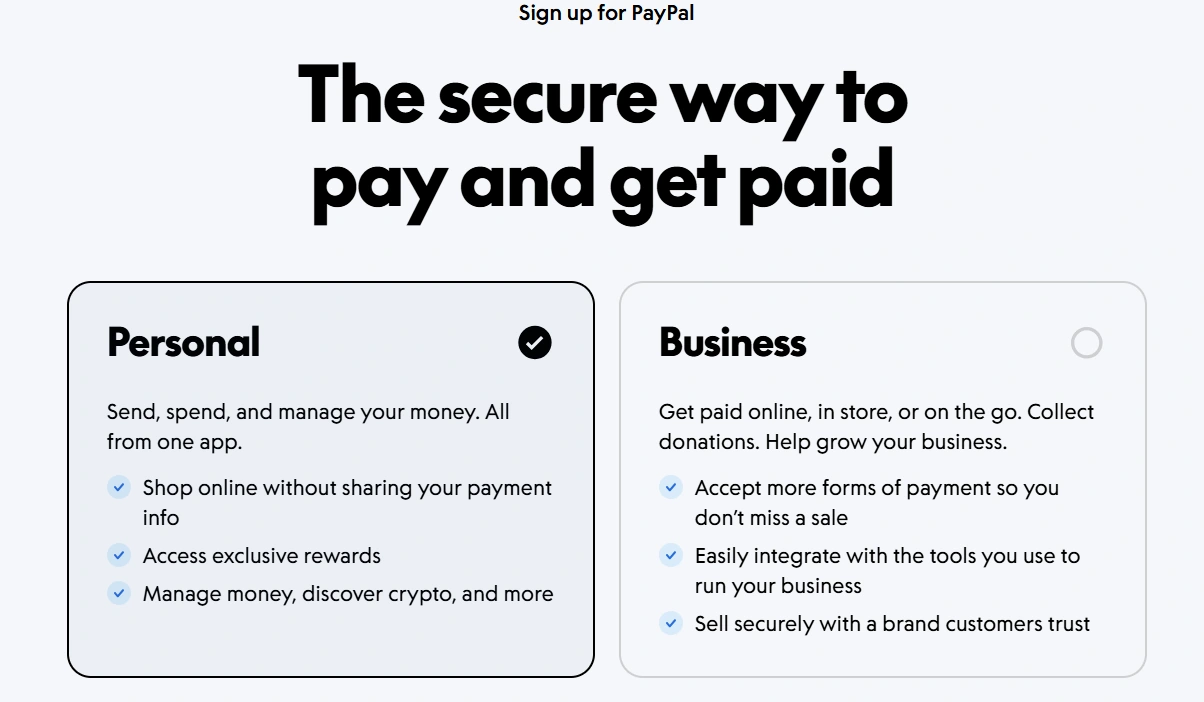
- Open PayPal’s official website for your country or its official app and choose Sign Up. The account-selection page lets you choose the appropriate account type.
- Enter the requested personal and contact details, use your real country of residence, and create a unique password.
- Complete the email and phone confirmation prompts that apply to your account.
- Review the terms and complete any identity checks shown inside your account.
Confirming your email, confirming ownership of a card or bank account, and verifying your identity serve different purposes. Completing one does not necessarily complete the others. Follow the outstanding requests in your account rather than assuming signup unlocks every feature.
Link a payment method
Add a supported card or bank account
On the website, open Wallet or the payment-methods section shown for your account. The name can vary by market. From there:
- For a card: select Link a debit or credit card, enter the requested details, and follow any confirmation instructions. Use the billing address held by the issuer. PayPal documents this in its card-linking instructions.
- For a bank account: choose the bank-linking option if your country and account support it. This may appear as Link bank or under Link a card or bank. Follow the offered connection and confirmation method; the required bank details vary by country.
For app users, PayPal’s UK instructions for the newer layout start at Me → Accounts, then the plus sign beside linked banks and cards. Your app may show a different layout.
You do not always need a bank account to make a payment: a supported card may be enough. However, the methods available for paying can differ from the destinations available for withdrawing money. Check both if you intend to receive payments.
Do you need money in your PayPal balance first?
Usually, no. If a linked payment method is available for your transaction, PayPal can charge it directly. Linking a card or bank account does not itself transfer money into PayPal. Adding money to a balance is a separate, market-dependent feature. For example, PayPal India does not offer balance top-ups, but supports payments using eligible linked cards.
If you want to set a default, open Wallet, select the method, and choose Set as preferred where available. Still check the selected source before each payment: PayPal’s funding guidance explains that backup funding may apply if the selected method cannot cover the payment. Changing your general preference also does not change an existing subscription’s assigned payment method.
How to pay with PayPal online
At a merchant that offers PayPal, you can choose an available funding method during checkout. You do not need a PayPal-branded debit or credit card to use ordinary PayPal checkout.
- Add the items to your cart and select PayPal among the checkout options.
- Sign in through PayPal and complete any requested security check.
- Select the available card, bank account, or eligible balance you want to use.
- Review the merchant, total, currency, delivery address when relevant, and any conversion details.
- Follow the final confirmation step. Some stores complete payment within PayPal; others return you to the merchant to place the order.
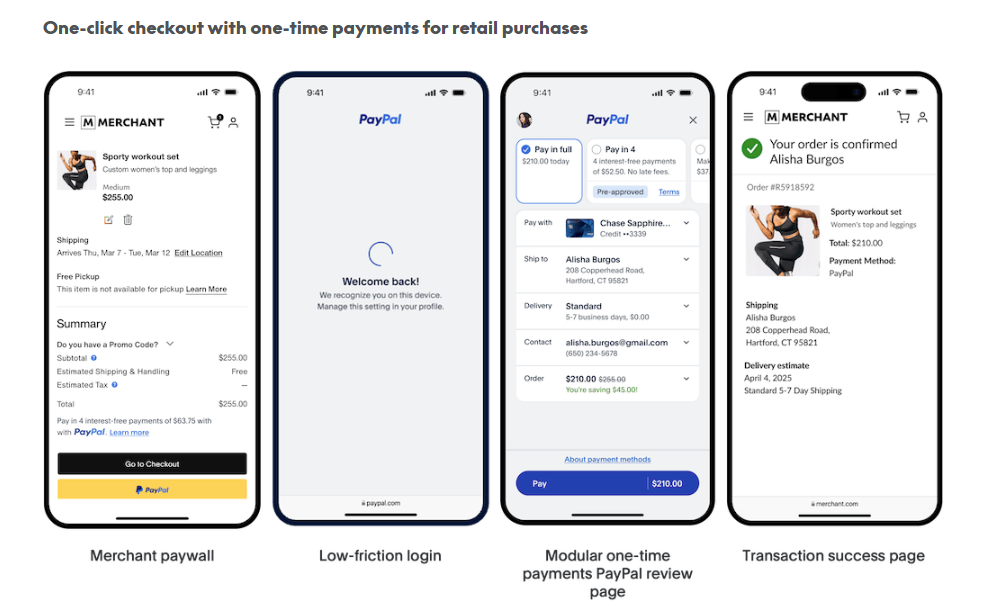
PayPal’s online-purchase instructions cover the basic process. Its checkout documentation also confirms that a Continue button can return you to the store for final approval.
Wait for the merchant’s order confirmation and check the transaction in PayPal’s Activity. Returning to the store alone does not prove the order is complete. If the outcome is unclear, inspect both records before submitting another payment.
For a subscription, read the recurring-payment authorization before agreeing. Manage its funding method separately in automatic-payment settings. Stopping a payment authorization does not necessarily end your contract with the merchant.
Can you pay without a PayPal account?
Some merchants offer card payment through PayPal Guest Checkout. Availability depends on the merchant’s setup and PayPal’s assessment of that checkout, so you cannot assume the option will appear. Using the PayPal website instead of the app is different: you can access your existing account in a browser.
How to send money to someone
First, confirm that the payment you want to make is supported for both accounts. Personal transfers are unavailable in some markets, and recipient account types can affect the choices you see.
- Open Send and Request and enter the recipient’s email address, supported phone number, or other accepted identifier.
- Check the recipient’s actual details. A matching display name alone is not enough.
- Enter the amount and select the currency. Add a note if useful.
- Choose the payment purpose when offered, then select an available funding method.
- Review the recipient, amount, currency, purpose, funding source, displayed fees, conversion terms, and total. Confirm only when these are correct.
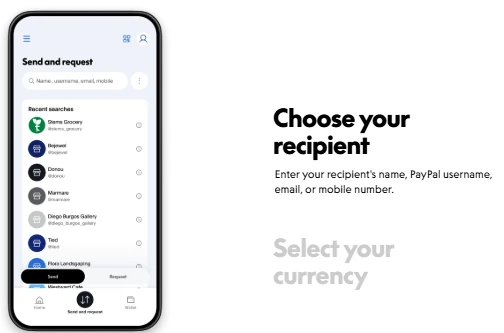
These steps follow PayPal’s send-money instructions. After sending, open the transaction in Activity to check its status.
Friends and Family or Goods and Services?
- Friends and Family: genuine personal transfers, such as a gift or reimbursing a shared meal, where available. These payments do not receive PayPal Purchase Protection.
- Goods and Services: paying for an item or service, including a purchase from someone you know. Protection applies only to eligible purchases under the relevant terms.
For example, reimbursing your sibling for dinner is a personal transfer; buying their used phone is a purchase. Choose based on what the payment is for. Do not use a personal payment to avoid a seller’s fees. PayPal explains the distinction in its payment-type guidance.
Check the funding source before sending. You generally cannot switch the payment method on a payment that has already been sent.
How to receive money and confirm you have been paid
Before asking someone to pay, check that receiving is available for your account and complete the applicable verification requirements. PayPal’s receiving guidance notes that some markets have additional local requirements.
- Share the confirmed email address associated with your account, a supported mobile number, or a payment link your account provides.
- Alternatively, open Send and Request → Request, enter the payer and amount, select the currency and request type when offered, then review and send the request.
- When you are notified of a payment, sign in directly and open Activity.
- Inspect the actual payment, sender, amount, currency, status, and any actions requested by PayPal.
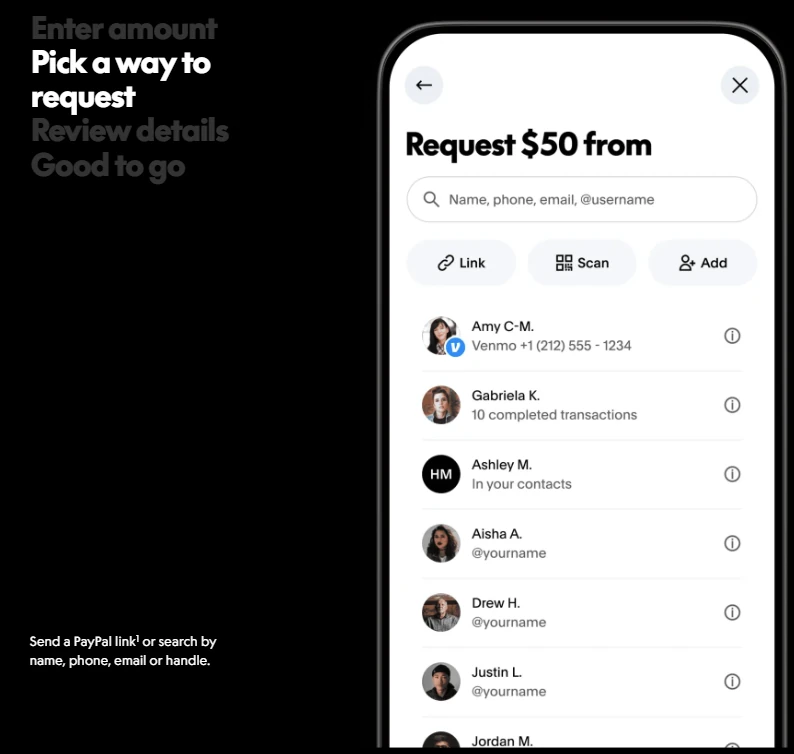
A request or invoice is not a payment. PayPal’s money-request instructions explain how to ask for money; the payer still has to pay. A pending request means it remains unpaid.
Also distinguish a recorded payment from money you can spend or withdraw. A payment may appear in your account while its funds are on hold. Read the explanation inside PayPal rather than relying on the payer’s screenshot or an email. Follow the applicable transaction and seller-protection instructions before fulfilling an order.
If keeping money in PayPal is supported, your account may have additional requirements. In the United States, personal users need a linked PayPal Balance account to hold and use a balance. Other markets have different arrangements.
How to withdraw available money
Receiving money into PayPal does not automatically mean it has reached your bank. Where withdrawals are supported, link an eligible destination and check that the funds are available.
- Open Wallet or your balance and choose Transfer Money or the withdrawal option shown.
- Select the route to your bank or another eligible destination.
- Choose the destination, amount, and currency where prompted.
- If standard and instant options are offered, compare the displayed fee and estimated arrival time.
- Review the destination details and confirm. Track the transfer separately from the original incoming payment.
The available routes and terms differ: compare PayPal’s U.S. withdrawal instructions with its UK instructions. Do not assume every card or bank is eligible, or that an option called Instant guarantees immediate arrival. Reviews and bank processing can delay transfers.
If no withdrawal option appears, check local receiving and withdrawal rules, the destination’s eligibility, and outstanding verification or account restrictions. Some markets use automatic transfers or local-partner arrangements instead of the same manual flow.
Check PayPal fees and currency conversion
The cost depends on what you are doing, where the accounts are registered, how the payment is funded, and whether currencies change. The following table identifies what to check; it is not a worldwide rate card.
| Your task | What can affect the cost |
|---|---|
| Paying for a purchase | The U.S. and UK consumer schedules list no PayPal purchase fee when no currency conversion is involved. Check your own market and any separate issuer charges. |
| Sending a personal payment | Domestic versus international treatment, the funding method, and currency conversion. A personal payment is not automatically free. |
| Receiving a sale or service payment | Commercial transaction charges and any applicable international or currency-related costs. |
| Withdrawing funds | The destination, transfer option, withdrawal currency, and local fee rules. |
| Paying or withdrawing in another currency | The transaction exchange rate, conversion costs, and potentially your bank or card issuer’s charges. |
Use the fee page for your account’s country. The U.S. consumer fee schedule and UK consumer fee schedule explicitly identify their markets; neither applies worldwide. Sellers should also check the merchant-fee schedule linked from their local fees page.
Look beyond the displayed transaction fee
When PayPal performs a conversion, review the exchange rate as well as the fee and total. Its transaction exchange rate includes a conversion spread, so a low visible transfer fee does not necessarily mean a low overall cost.
Some card-funded payments offer a choice between PayPal conversion and the card issuer’s conversion. Check the issuer’s foreign-transaction charges before choosing. PayPal explains that the issuer’s final conversion rate may only be known later, and the choice is not always offered. Neither option is automatically cheaper for every payment.
What to do when a PayPal payment goes wrong
Open the relevant transaction in Activity before trying again. The wording matters: PayPal distinguishes payment statuses from money-request statuses.
| What you see | What to check next |
|---|---|
| Payment declined | Check card expiry, billing details, required confirmations, and account alerts. If the bank or card issuer declined it, contact that provider. |
| Card will not link | Check the billing address and card details. The issuer may have rejected verification, or the card may already be linked to another account. |
| Payment pending | Read the details for a review, funding clearance, or authorization. Do not assume the recipient simply needs to accept it. |
| Payment unclaimed | Confirm the recipient’s details and look for a Cancel option. Not every unclaimed payment can be canceled by the sender. |
| Money request pending | The request has not been paid. Check for an actual incoming payment before treating it as money received. |
| Received payment on hold | Read the hold explanation and complete legitimate actions requested inside the account. The funds are not yet freely available for withdrawal. |
For detailed fixes, use PayPal’s guidance on declined payments, card-linking problems, and payment holds.
Can you cancel a payment or get a refund?
For an eligible unclaimed payment, open Activity and use Cancel if it is offered. PayPal’s unclaimed-payment guidance explains why some cases allow cancellation and others do not.
A completed payment generally cannot simply be canceled. Open its details and contact the recipient or seller to request a refund. If you sent money to the wrong person, ask for its return promptly; recovery is not guaranteed.
Refunds usually return to the original payment method, with exceptions. Arrival depends on the original source and processing by the bank or card issuer. Check Activity and PayPal’s refund-tracking guidance rather than assuming a refund will immediately appear in your PayPal balance.
When to open a dispute
If an eligible purchase is not delivered or is significantly different from its description, first try to resolve the issue with the seller. If necessary, use Resolution Center → Report a problem, select the payment, and explain what happened. PayPal’s purchase-problem instructions describe this process.
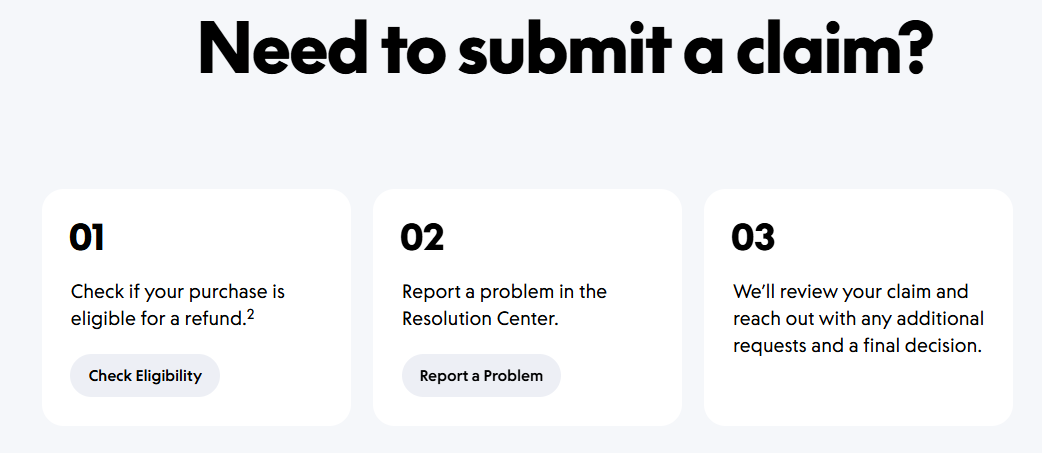
Keep the order details, messages, and other evidence. Check both the deadline to open a dispute and the deadline to escalate it to a claim. U.S. Purchase Protection terms, for example, contain exclusions and eligibility conditions; use the applicable local terms for your account. Choosing Goods and Services does not guarantee a refund.
If you did not authorize a payment, report unauthorized activity promptly through the Resolution Center. That is a different issue from an authorized purchase that went wrong.
Keep your account and payments secure
- Protect sign-in access. Use a unique password, keep your recovery details current, and enable the additional security options available to you. PayPal documents authenticator-based two-step verification under account security settings.
- Keep login details private. Someone paying you does not need your password, one-time code, or full card credentials.
- Inspect unexpected invoices. An invoice can be sent through PayPal without representing a legitimate debt. Do not pay an unfamiliar request or call a support number written in its notes.
- Question payment-release and overpayment demands. Do not send a separate payment to someone who claims it will unlock incoming funds, or forward an alleged overpayment to an unrelated recipient. Check the actual transaction and contact PayPal through its official channels.
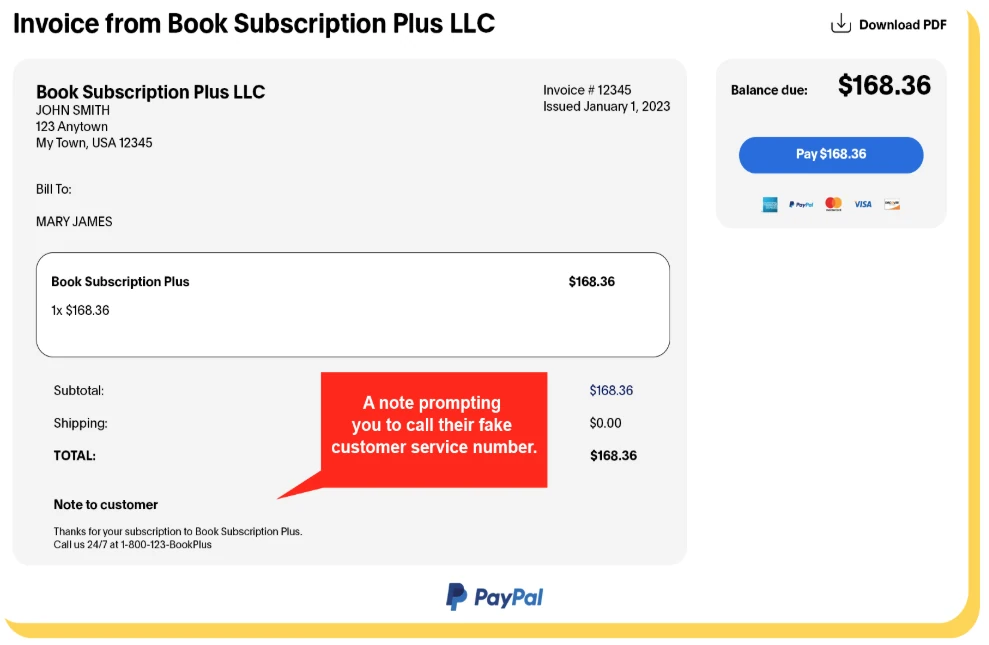
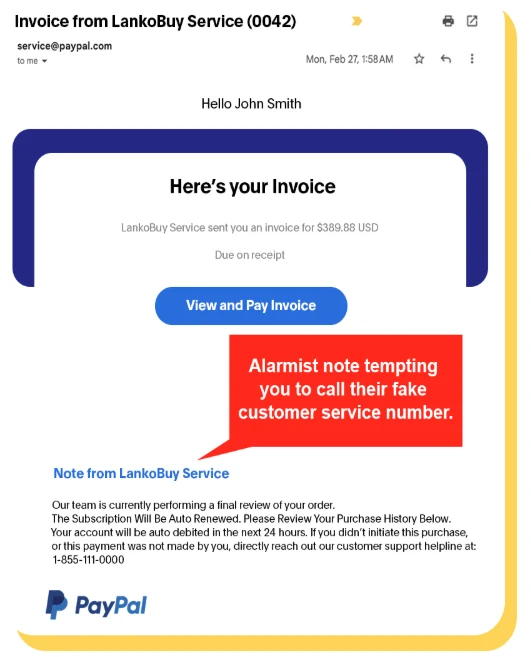
PayPal’s scam guidance explains how to report suspicious requests. Even a payment visible in Activity can later be disputed or reversed, so a transaction record is not a guarantee that the funds are irrevocable.