
Published: October 24, 2026. Last updated: November 22, 2026.
To close your PayPal account, sign in on the website, open Settings, select Close your account under Account options, and confirm with Close Account. PayPal’s U.S. closure instructions require you to remove any remaining balance and resolve outstanding account issues first.
Closure is permanent. PayPal says a closed account cannot be reopened. Save the records you need and check your subscriptions before confirming.
This guide follows PayPal’s U.S. policies and published website instructions. Procedures and requirements can differ by country, account type, and linked financial product.
Before you close your account
Complete these checks before the final confirmation. Saving records and organizing subscriptions are practical precautions; they are not all mandatory closure conditions.
- Remove your available balance. Transfer your money out, then confirm that the transfer has completed. Review any unresolved activity rather than assuming a zero balance means everything is finished.
- Download the records you need. PayPal’s report instructions use History → Download icon → Custom. Choose the appropriate report, generate it, and download the finished file. Keep relevant statements, receipts, and case records—not just a screenshot of your balance.
- Review services that use PayPal. Decide which subscriptions you will cancel and which need another payment method. Follow the subscription checks below before closing.
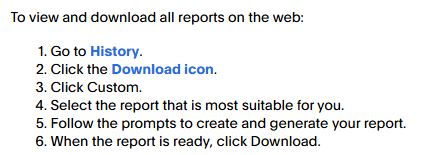
Wait until any requested report is actually downloaded and readable. PayPal notes that large history files can take time to generate. Also check for linked credit products, which can require a separate closure process.
How to close your PayPal account on the website
After completing the preparation above, follow PayPal’s published web procedure:
- Sign in to your PayPal account in a web browser and open Settings.
- Under Account options, select Close your account.
- Review the information presented, then select Close Account when you are ready to confirm.
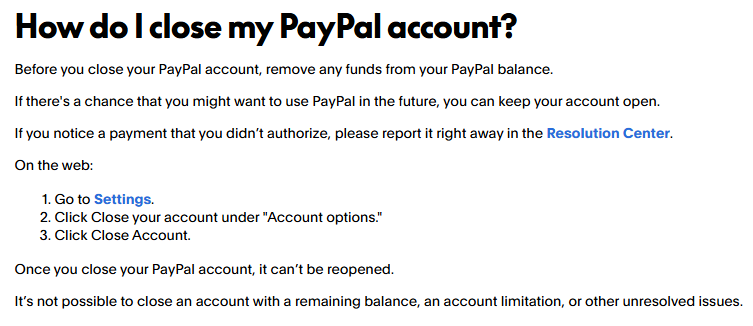
Keep any closure confirmation PayPal provides. If the process ends with an error or an unclear result, ask PayPal support to verify the account’s status. Being logged out or having trouble signing in is not, by itself, reliable confirmation of closure.
Can you close your PayPal account on a phone?
On a phone, use PayPal’s website in a browser and follow the web instructions. The U.S. help page reviewed for this guide documents that route, not a separate app procedure. Do not assume every app version has identical menus.
If you cannot find an account-closure option in the app, switch to the website or use official support. Uninstalling the app is not a substitute for completing the account-closure process.
Cancel or move subscriptions before confirming closure
To review automatic payments on PayPal’s website, open Settings → Payments → Subscriptions and saved businesses or Automatic Payments, then select the merchant. PayPal’s automatic-payment guidance explains where you can cancel a payment agreement and find the merchant’s contact details.
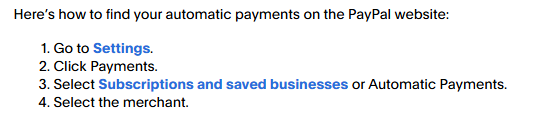
Stopping payment through PayPal does not necessarily cancel the service itself. PayPal’s subscription guidance distinguishes removing a payment method from ending the underlying subscription or contract.
For a service you no longer need, cancel directly with the provider and retain its confirmation. For a service you want to keep, arrange another payment method with that provider before closing PayPal. Merely choosing a different backup card inside PayPal does not move the subscription outside PayPal.
Why can’t you close your PayPal account?
A blocked closure can reflect an unresolved account condition, not a browser fault. PayPal’s U.S. user agreement identifies pending transactions, open disputes or claims, negative balances, and holds, limitations, or reserves as possible barriers.
| What you find | What to do next |
|---|---|
| Money remains in the account | Transfer the available balance out before trying again. |
| A negative balance | Review the amount owed and resolve it through PayPal’s account instructions. |
| A pending transaction | Check its details and establish what must happen before it can be completed or resolved. |
| An open dispute or claim | Continue the case through its proper resolution process. Do not abandon it just to close the account. |
| A hold, limitation, or reserve | Read the account notice and follow the applicable requirements. Contact support if the next action is unclear. |
For a limitation, PayPal directs you to the Resolution Center or dashboard notifications. If you have already submitted the requested information, the account may still be under review or PayPal may need more documents. There is no universal resolution time; PayPal says it depends on the case.
Do not close an unresolved dispute to clear the way for account closure. PayPal’s case-closure guidance says a closed case cannot be reopened or escalated. Verify that the agreed resolution has actually happened, including receipt of any promised refund.
What if you are waiting for a refund?
Check the refund before closing rather than relying on the seller’s promise. On the website, use Activity → Filters → Refunds, select the date range, and open the transaction. PayPal’s refund guidance explains that the destination and processing time depend on the original payment method, with some exceptions.
As a precaution, wait until you have verified receipt or obtained account-specific instructions from PayPal. Do not assume closure will automatically cancel a refund, accelerate it, or redirect it to a different account.
What if the closure option is missing?
Use the website route, check your account notifications, and note any error message. If you still cannot proceed, open PayPal’s Contact Us page and choose the account-closure topic. Explain whether the option is absent or whether an error appears after you select it; those are different problems.
If you discover a payment you did not authorize, report it promptly through PayPal’s unauthorized-activity process. Closing the account is not a substitute for reporting the transaction and securing access.
How to proceed if you cannot log in
Start with access recovery. PayPal’s password-reset instructions direct you to select Forgot password? on its login page and complete the security check.
If verification codes go to an old phone number, follow PayPal’s changed-number recovery guidance or contact support. Explain that you want to recover access or obtain help closing an account you own.
Use official recovery and support channels, not a third-party “account deletion” service. Do not share passwords or one-time security codes with someone offering to bypass verification.
Check linked credit products separately
PayPal says you cannot close the main account while certain linked credit products remain active: PayPal Cashback Mastercard, Extras Mastercard, Credit Card, Credit digital line, or Smart Connect. Its linked-credit-account guidance explains the prerequisite and possible effects on online servicing and rewards.
For the PayPal Credit digital line or Credit Card, use the official Synchrony closure instructions. Before proceeding, confirm how you will manage any remaining balance, obtain statements, and handle unredeemed rewards.
Closing a credit account does not erase its debt. The PayPal Credit terms require repayment of the amount owed after closure. Do not treat account closure as permission to stop required payments.
Closing a PayPal Business account
The U.S. user agreement also requires you to withdraw or transfer a business account’s balance before closing it. As practical preparation, save your business reports, review customer cases and outstanding orders, and update checkout options or payment instructions that direct customers to the account.
If the business interface does not match the website steps above, use PayPal’s account-closure support rather than following an old menu sequence from an unrelated interface.
Changing account type is a different task. PayPal’s upgrade and downgrade guidance says most business accounts cannot be downgraded and recommends opening a personal account instead. Do not assume closing the business account converts it or transfers its history.
What happens after your account is closed?
You cannot reactivate the same account. PayPal says you can open a new account, but that is not the same as restoring the closed one. Keep the files you downloaded rather than relying on a future account to recover your records.
Under the U.S. user agreement, closing a personal account also closes its linked PayPal Balance Account. Obligations associated with the account remain after closure.
The agreement allows account closure without a closure fee. That does not establish that every preceding withdrawal or currency conversion is free; review the terms displayed for those separate transactions.
Does closing PayPal delete all your personal data?
No—not immediately. Closing an account and erasing retained personal information are different processes. PayPal’s U.S. Privacy Statement says retention depends on the purpose of the information, applicable legal requirements, and needs such as investigations, audits, and legal claims. There is no single deletion date that applies to every record.
To request data erasure while signed in, PayPal documents a route through Settings → Data & Privacy → Delete your data and close account. Review the disclosures, select your contact and data-copy preferences, and complete the submission and security checks described in its data-erasure instructions.
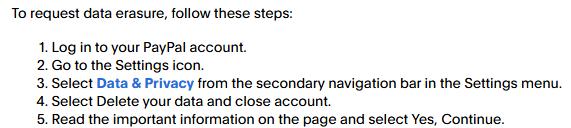
This route includes account closure; it is not a way to delete all records while keeping the account active. PayPal also warns about losing use of linked Xoom, Honey, and PayPal Point of Sale accounts during this process. Read those warnings before proceeding.
Erasure remains subject to eligibility and retention requirements, and PayPal says the request cannot be withdrawn. If your account is already closed, its guidance allows you to contact customer service about erasure. A privacy request is not a workaround for an unresolved balance or account restriction.
This is an independent guide, not PayPal customer support. For an account-specific restriction, unclear closure result, or privacy request, use PayPal’s official support channels.