
Published: October 23, 2026. Last updated: November 22, 2026.
To add money to PayPal, use Add Money in the app or Wallet → Transfer Money on the website to start a bank or debit-card transfer. You can also add physical cash at a participating store without a bank account.
This guide covers U.S. personal accounts and PayPal Balance. Account options and app labels can vary.
Just making a purchase? You usually do not need to preload a balance. PayPal lets you pay with an eligible linked bank account or card at checkout. Linking a payment method alone does not move money into your balance.
Choose a way to add funds
| Funding method | PayPal fee | Usual availability |
|---|---|---|
| Confirmed bank account | No PayPal top-up fee | Usually up to 5 business days; some eligible additions can be instant |
| Eligible Visa or Mastercard debit card | No PayPal top-up fee | Typically seconds |
| Cash at a participating store | Up to $3.95; varies by store | Usually minutes |
The bank and debit-card fees come from PayPal’s funding FAQ; timing follows its transfer guidance. The retail cash service has its own charge. Check any separate terms from your bank or card provider. Withdrawal fees apply to money leaving PayPal and are separate from these additions.
To hold funds, you need a PayPal Balance account linked to an eligible personal account in good standing. The U.S. Balance terms require residence in the United States or a U.S. territory, the applicable minimum age—18 or your state’s age of majority—and identity verification. Complete any required setup inside PayPal. A PayPal Debit Card is optional for the bank, external debit-card and app-barcode methods below.
Add money from a bank account or debit card
Use your confirmed bank account or an eligible linked Visa or Mastercard debit card. If your bank is not linked yet, start in Wallet and choose the bank-linking option. PayPal’s bank setup instructions explain instant verification where offered and the alternative small-deposit process. To link a debit card, use Wallet → Link a debit or credit card and follow PayPal’s card-linking instructions.
A credit card can be a checkout payment method, but PayPal’s documented balance-funding options specify a bank account or eligible debit card. Linking a credit card does not make it a balance top-up source.
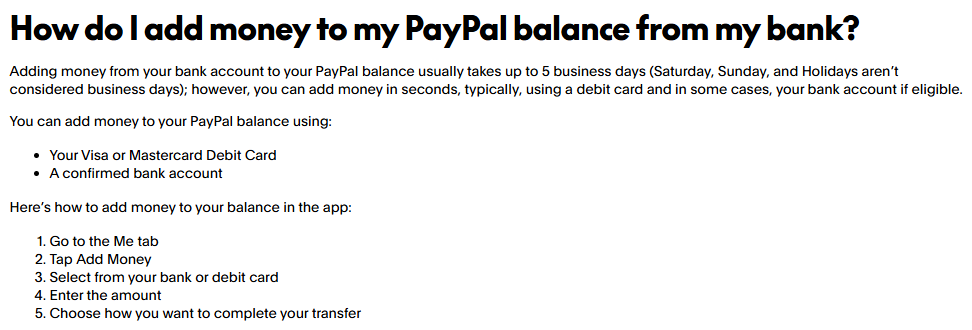
In the PayPal app
Follow PayPal’s current app instructions for adding money:
- Open the Me tab.
- Tap Add Money.
- Select your bank account or eligible debit card.
- Enter the amount you want to add.
- Choose the transfer option available for that funding source.
On the PayPal website
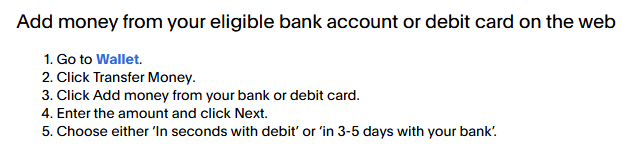
PayPal’s website funding instructions use this route:
- Sign in and open Wallet.
- Select Transfer Money.
- Choose Add money from your bank or debit card.
- Enter the amount and select Next.
- Choose the debit-card or bank transfer option shown.
Before authorizing either transfer, check the amount, selected funding source and expected arrival time, then complete the remaining prompts. Use the options displayed for your account; an instant bank addition is available only when PayPal offers it.
Check your limits and confirm arrival
PayPal publishes debit-card addition limits of $5,000 per day, $10,000 per week and $20,000 per month. Bank additions also have daily, weekly and monthly limits, but the official funding page does not publish one universal set of bank amounts. Follow the limit shown for your transfer.
To check when the money should arrive, open Activity on the website, or Me → Activity in the app, and select the transfer. PayPal’s tracking guidance explains that a bank debit can occur before the funds reach PayPal. Confirm that the money is available in your balance before relying on it for a purchase.
Add cash to PayPal without a bank account
The retail cash option works without a linked bank account. You need PayPal Balance and either an app-generated barcode or a PayPal Debit Card. Participating retailers include Walmart, CVS and Dollar General. Check participating locations before traveling, then select the retailer and generate the barcode at the store.
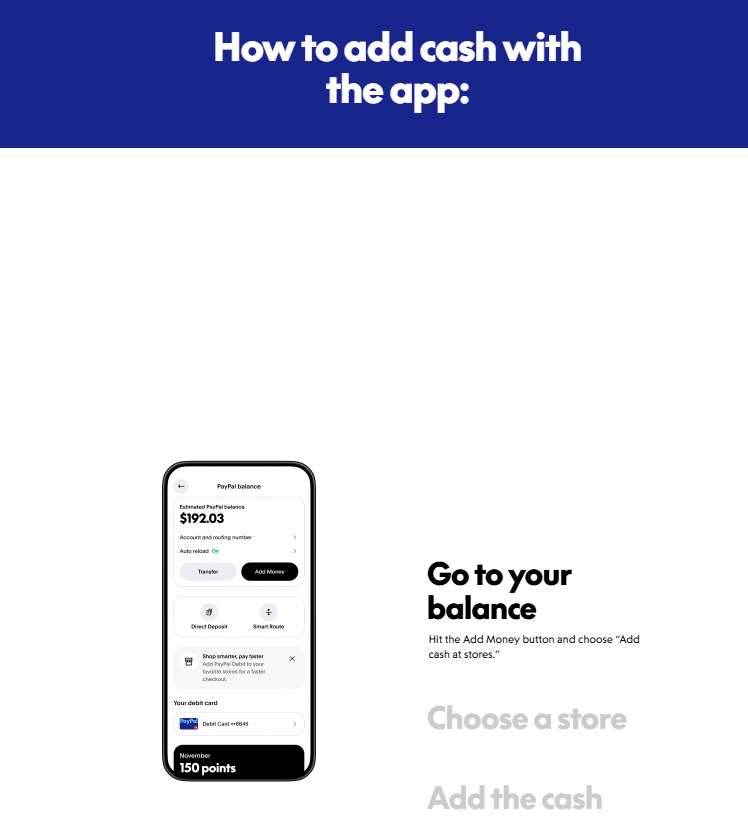
For a barcode deposit, follow the Add Cash at Stores instructions:
- Open PayPal balance from Home or Accounts in the app.
- Tap Add Cash at Stores and select your retailer.
- Generate a barcode at the store; it expires after 15 minutes.
- Show it to the cashier, confirm the fee and hand over your cash.
- Keep the receipt and check your balance; PayPal states that crediting takes up to 15 minutes.
If you already have a PayPal Debit Card, you can hand over cash and swipe that card at a participating register instead of generating a barcode. The cash supplies the deposit; the card identifies your PayPal account. This differs from electronically adding money from an external debit card.
Cash deposit fees and limits
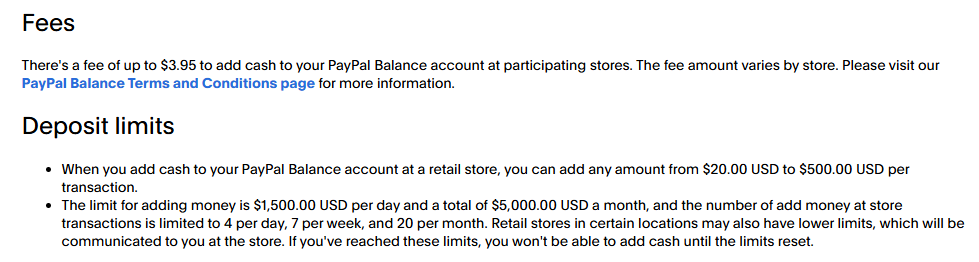
The cash reload fee varies by store and can be up to $3.95. PayPal’s published retail deposit limits are:
- Amount per deposit: $20–$500.
- Total cash added: up to $1,500 per day and $5,000 per month.
- Number of deposits: up to 4 per day, 7 per week and 20 per month.
Stores may set lower limits; both amount and transaction-count limits apply.
Older PayPal Prepaid Mastercard reload instructions no longer apply: that separate program closed on April 30, 2026. The PayPal Debit Card is unaffected.
Why can’t you add money to PayPal?
The Add Money option is missing
Check that you are using the account and country covered by these instructions, then look for account alerts or incomplete Balance setup. Identity verification is required to hold a balance. PayPal also identifies account limitations or verification needs as possible reasons you cannot add money. These are possibilities, not proof of what caused a missing button. If no explanation appears, contact PayPal through the app or website.
Your bank or card cannot be linked or selected
For a bank-linking problem, check that the account is with a U.S. bank and the account-holder name matches your PayPal name. Complete any outstanding confirmation. PayPal lists additional bank-linking restrictions and compatibility issues.
For a card-linking error, compare the billing address with your card statement. If the issuer rejected PayPal’s verification authorization, ask the issuer why. The card-linking help page covers these checks. A card appearing in Wallet does not guarantee that it qualifies for Add Money; check the sources offered in that transfer flow.
An attempted addition is declined
Read the exact error before trying again. Check the amount against your funding limit, confirm that the bank or card has sufficient available funds, and review any account alerts. If the message identifies the bank or card issuer, contact that provider. For an unexplained rejection, ask PayPal to investigate the attempted addition. First check Activity to make sure it did not create a pending transfer.
The transfer is pending or overdue
Open the existing transfer in Activity and compare its estimated arrival with today’s date. Standard bank additions usually take up to five business days, excluding weekends and holidays. If the estimate has passed, contact PayPal support with the transaction details. Avoid initiating another transfer just because the first one is pending; that could produce a second debit.
The cash barcode expires or fails
Replace an expired barcode. Otherwise, use the current barcode before generating another. Also check your confirmed email, account verification and remaining cash limits, as recommended in PayPal’s cash-deposit troubleshooting guidance.
You paid cash, but the balance has not increased
Keep the receipt and check the balance and transaction history after the stated crediting window. Ask the retailer to confirm the deposit was completed, then contact PayPal with the receipt details, amount, store and time. Resolve the original deposit before handing over more cash.
Use the official PayPal contact page for account help. PayPal warns against supposed support agents asking for your password, verification codes or a payment to test or fix your account.
Other ways to receive or maintain a balance
Direct Deposit for paychecks or benefits
Direct Deposit can put future paychecks or government payments into PayPal Balance. There is no PayPal fee to set up or maintain Direct Deposit. The payer must be U.S.-based, and this feature is not available for Business accounts. In the app, open your balance, select Direct Deposit and follow the setup process. PayPal’s Direct Deposit instructions explain how to find your employer or provide your assigned account and routing details to the payer.
Allow around two pay cycles for payroll deposits to begin; timing varies by payer. Eligible early access can provide funds up to two days before payday, depending on when PayPal receives the payment instructions. See the Direct Deposit timing conditions. This is a way to arrange future income, so it will not solve an immediate one-off funding need.
Automatic additions
For ongoing funding, PayPal supports automatic additions from a linked bank account or eligible Visa or Mastercard debit card, either on a schedule or when your balance falls below an amount you choose. Review the source, trigger and amount before enabling this option, and keep enough funds available to cover it.
Payments from other people
Someone paying you back can send money to your personal PayPal account, where it goes into the associated Balance account. Receiving personal payments is free when no currency conversion is involved; commercial payments have different fee rules. Check the transaction’s status and available balance, because PayPal can place incoming payments on hold.