
Published: October 25, 2026. Last updated: November 22, 2026.
You can verify a U.S. personal PayPal account by adding and confirming a bank account, according to PayPal’s account-verification instructions. If PayPal separately asks you to confirm your identity or resolve an account limitation, complete that specific request as well. Confirming a payment method does not automatically complete every check.
Scope: This guide covers U.S. personal accounts and PayPal’s documented website procedures. For an account registered elsewhere, use the requirements shown in your account and your country’s Help Center.
Start with the verification request you see
The word “verification” can refer to several different tasks. Use the message in your account to choose the relevant instructions below; you do not need to perform every procedure.
| Request | What it checks | Where to act |
|---|---|---|
| Verify your account or bank | Ownership of your financial details | Link and confirm your bank in Wallet |
| Confirm Card | Validity and ownership of that card | Open the card in Wallet |
| Confirm your identity | Your personal identifying information | Open the signed-in identity request |
| Confirm email or phone | Access to that contact method | Email confirmation or phone confirmation in Settings |
| Resolve an account limitation | The requirements for your particular restriction | Read the tasks in the Resolution Center |
For email confirmation, open Settings, select Confirm beside the address, then Confirm this email address to resend the confirmation message. Use the link in the message you requested to complete confirmation on PayPal. Check the address and your spam folder if it does not arrive. For a phone number, use the Phone Numbers section in Settings and complete the offered text or call confirmation. These contact checks serve a different purpose from bank confirmation or identity review.
Link and confirm your bank account
Before starting, make sure the bank account is eligible and in your name. PayPal’s U.S. bank-linking guidance requires a U.S. bank and a name matching your PayPal account. Some banks are not compatible, so a rejected connection does not necessarily mean you entered the details incorrectly.
1. Link the bank in Wallet
If your bank is already in Wallet, move to the confirmation check below. Otherwise, follow PayPal’s website instructions for linking a bank:
- Sign in to PayPal and open Wallet.
- Choose Link a card or bank, then Link a bank account.
- Search for your bank or choose it from the list.
- Use the offered bank-login connection, or select Link your bank another way to enter the details manually. In the manual flow, enter your bank information and select Agree and Link.

PayPal uses a third-party provider for its instant bank-login connection. Read the permissions shown before proceeding. The manual option is available if you prefer not to enter your bank login details.
2. Complete the bank confirmation
If PayPal shows that your bank is already confirmed, skip this step. If confirmation is still required, open the bank in Wallet and use instant confirmation if offered. For a manually linked bank awaiting small deposits, follow PayPal’s small-deposit confirmation process:
- Look for two deposits of $0.01–$0.99 each on your bank statement, normally within three business days.
- Return to Wallet and select the same bank.
- Enter the two exact deposit amounts and select Submit.
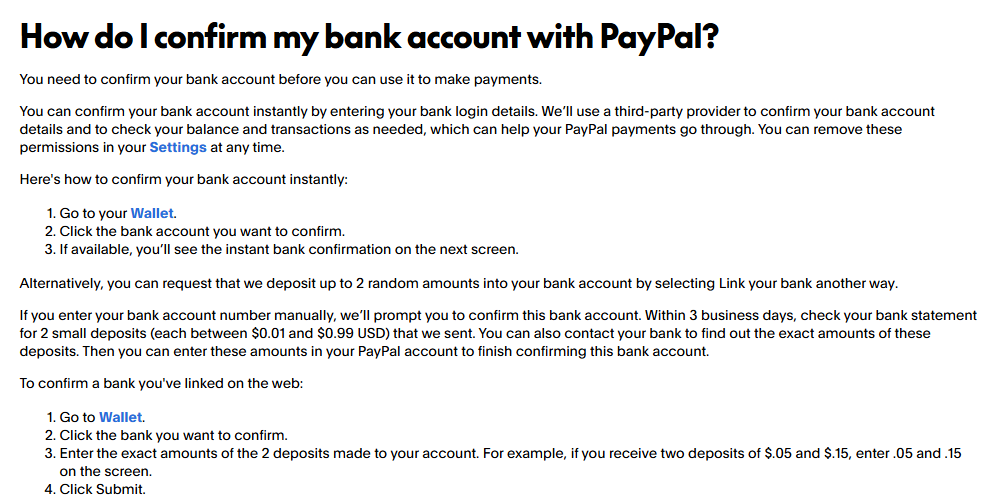
PayPal later withdraws the combined deposit total. Receiving the deposits alone does not finish manual confirmation: you must return to PayPal and successfully submit the amounts.
Can you verify without a bank account?
The current U.S. verification page also lists applying for and being approved for a PayPal Credit product. That involves a credit application and approval; it is not a reason to take on credit solely for verification. You do not need a card or credit product to follow the bank-confirmation route. If neither route fits your situation, ask PayPal which requirements apply to the feature you want to use.
Confirm a debit or credit card when requested
Card confirmation checks that particular payment method. If you need to add the card first, use Wallet → Link a debit or credit card, following PayPal’s card-linking instructions. A confirmed card should not be treated as proof that a separate identity request has been completed.
To complete PayPal’s card-confirmation procedure:
- Open the card in Wallet, choose Confirm Card, review the information, and select OK.
- Find the $1.95 charge and its four-digit PayPal code on your card statement, normally within two to three business days.
- Return to the same card in Wallet, enter that statement code, and select Confirm.
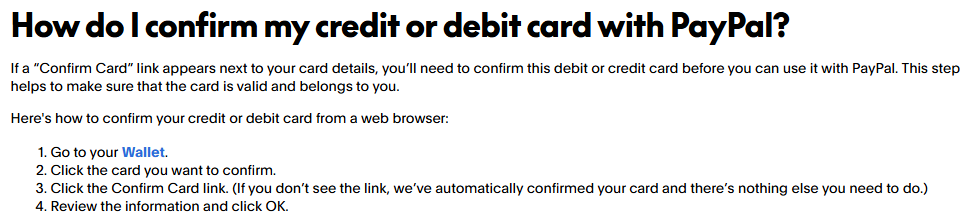
If you cannot find the code, follow PayPal’s instructions to request a new one. Use the latest code requested; repeated requests can create additional charges. Enter the statement code, not your card’s security code or an SMS code.
If no Confirm Card link appears, PayPal says it has automatically confirmed that card. After manual confirmation, PayPal refunds the charge immediately, although your issuer can take up to 30 days from the refund date to credit it.
A separate temporary authorization of up to $1 may appear when you add or edit a card. PayPal says it does not collect that amount. Releasing this authorization is different from refunding the $1.95 confirmation charge; a disappearing pending amount does not establish that every account check is complete.
Complete a separate identity-verification request
PayPal’s Customer Identification Process, or CIP, checks personal information. For example, holding money in a U.S. PayPal Balance account requires identity verification. That explains why you may still need to provide identification after confirming your bank.
When PayPal requests identity information, use its official identity-confirmation process:
- Sign in directly on PayPal’s website and open Confirm your Identity or the relevant notification under the bell icon.
- Read the information and document requirements shown for your account.
- Provide the requested information through that signed-in process, then check the submission result and any follow-up request.
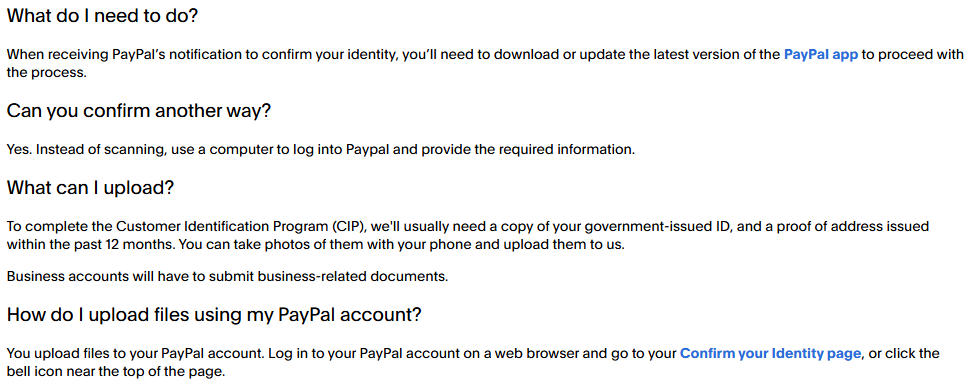
If you use the app-based biometric process, PayPal may ask you to scan government photo ID and take a selfie. PayPal also documents a computer-based alternative for providing the required information, so a selfie is not a universal requirement.
PayPal aims to review CIP documents within two business days, but some reviews take longer. Submitting a document is not the same as having it approved.
Prepare the documents requested for your account
Use the checklist in your account. PayPal’s documentation guidance includes the following examples for identity and address requests:
- Photo ID: an unexpired passport, driver’s license, ID card, or another government-issued photo ID.
- Proof of address: examples include a utility or phone bill, or a bank or credit card statement, dated within the past 12 months. Other accepted document types have their own conditions; check the requirements for the document you plan to use.
Your documents must match your account information. If you have changed your legal name, PayPal may request evidence of that change. If you lack one document, check the other accepted options in your request or ask PayPal which evidence can satisfy it; confirming a bank is not a substitute for requested identity documents.
For PayPal Balance, the U.S. Balance terms require verification of your name, physical address, date of birth, and taxpayer identification number. Providing requested SSN or taxpayer information is different from being asked to upload a Social Security card image. Follow the actual request rather than assuming everyone must upload the same documents.
Business accounts: PayPal’s business-verification requirements differ for sole proprietors, registered companies, and nonprofits. Depending on the business type, PayPal may need entity, tax, representative, or ownership information. Use the Business checklist shown in that account; the personal-account steps above are not a complete business-verification process.
Check the outcome and resolve unfinished verification
Check completion against the task you were asked to perform. For a payment method, return to that bank or card in Wallet and read the confirmation result. For identity verification, look for the review outcome and any additional request. If your account is limited, check the Resolution Center for the remaining tasks or review status.
Verification does not guarantee unlimited transfers or withdrawals. The U.S. PayPal User Agreement allows withdrawal limits and delays in specified circumstances. If a transaction remains blocked, identify the stated restriction instead of assuming that repeating verification will remove it.
Bank deposits are missing, combined, or rejected
If the expected deposits have not appeared, open the bank in Wallet and use the resend option described in PayPal’s bank-confirmation guidance. If your bank combines both deposits into one amount, contact PayPal or use instant confirmation if available. Do not guess two amounts from the combined total.
Three incorrect deposit-amount attempts can disable and remove the bank from your PayPal account. Contact PayPal for help reactivating it instead of repeatedly trying different figures.
Your document upload is rejected
Read the error before submitting again. PayPal’s upload troubleshooting recommends clear images without blur, glare, or shadows, with all corners and required information visible. Include both sides of an ID card and check that the details match your account. Correct the identified problem before uploading again; resending the unchanged file is unlikely to solve it.
Your account remains limited after you submit everything
A remaining limitation can mean PayPal is still reviewing the information or has asked for more. Check the Resolution Center and your email for a specific next action, as explained in PayPal’s limitation-removal guidance.
For limitation reviews, PayPal says the review usually takes three business days after the required steps are completed. It contacts you by email when the review finishes. This is a limitation-review estimate, not a universal deadline for all verification. More complex cases can take longer.
If the stated review window has passed and you cannot find an outstanding request, contact PayPal through the Help or Contact options in your account. Explain which task you completed, when you submitted it, and the exact message you still see.
A payout platform still reports an unverified or unconnected account
Verification and connecting PayPal to another service are separate tasks. For example, UserTesting’s participant guidance requires a verified PayPal account in your own name and tells participants to return to UserTesting to connect it after verification. If PayPal’s required checks are complete, review the platform’s connection instructions rather than starting another card-confirmation charge.
Keep verification inside your PayPal account
Open PayPal directly when a message asks you to verify something. If an email claims your account is limited but you see no corresponding limitation in the Resolution Center, PayPal says the message may be fraudulent. Use official support to clarify the request. Keep passwords, one-time security codes, and identity documents inside the appropriate official process, and do not send money to someone claiming they can verify your account for you.