
Published: November 3, 2026. Last updated: November 22, 2026.
To issue a PayPal refund, sign in to your account, open Activity, select the original payment, and click Issue a refund. Enter the amount you want to return, select Continue, review the details, and confirm by clicking Issue Refund.
For standard eligible PayPal transactions in the United States, you can issue a full or partial refund within 180 days of the original payment. Once you submit a refund, you cannot cancel it. PayPal does not charge a separate fee to refund a Goods and Services payment, but the original payment processing fees are not returned to the seller.
Whether you’re refunding a canceled order, returning part of a customer’s payment, or resolving a dispute, the correct procedure depends on the transaction and its status.
How to Issue a Full Refund on PayPal
A full refund returns the entire original payment amount to the buyer. This is the usual option when an order has been canceled, an item has been returned, or a service cannot be provided.
To refund a completed payment through the PayPal website:
- Sign in to PayPal. Visit PayPal and log in to the account that received the payment.
- Open Activity. Locate the customer’s original payment in your transaction history.
- Select the transaction. Open its details and click Issue a refund.
- Enter the refund amount. For a full refund, use the complete eligible payment amount.
- Click Continue. Check the amount and transaction details before submitting the refund.
- Confirm the refund. Click Issue Refund to submit the transaction.
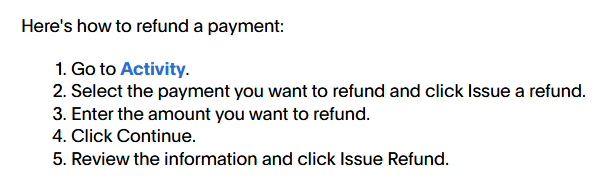
After submitting the refund, you can review it in PayPal Activity. The customer generally receives the money through the original payment method, although the time needed for the funds to appear depends on that method and its financial institution.
Check the amount carefully before confirming. PayPal does not allow you to cancel a refund once it has been issued.
These steps follow PayPal’s official refund instructions.
How to Issue a PayPal Partial Refund
A PayPal partial refund lets an eligible seller return only part of the original payment. It can be useful when a customer keeps an item but receives compensation for damage, a missing accessory, or an incomplete service.
The process is similar to a full refund, except that you enter a smaller amount.
- Sign in to PayPal and open Activity.
- Select the payment you want to partially refund.
- Click Issue a refund.
- Enter the specific amount you want to return rather than the full payment amount.
- Click Continue and review the partial refund details.
- Click Issue Refund to confirm.
For example, suppose a customer paid $120 for an order, but one item worth $30 was unavailable. If the transaction supports partial refunds, you could issue a $30 refund while keeping the remaining $90 of the original payment before accounting for applicable transaction fees.
Partial refunds cannot exceed the amount still eligible for refund. Some PayPal payment integrations support multiple partial refunds against a single captured transaction, provided the combined refunded amount does not exceed the original captured amount. Availability depends on the payment product and transaction.
When is a partial refund unavailable?
PayPal’s standard refund guidance states that payments sent as personal transfers or made using a coupon or gift card can only be refunded in full through the original refund process.
For these transactions, PayPal describes sending a separate personal payment with a note identifying the original transaction as a possible way to return part of the money. However, a new payment is not the same as a refund linked to the original transaction. Separate transfer fees and different payment protections may apply.
For an ordinary Goods and Services payment, using the original transaction’s refund function is the more direct way to preserve a clear record of the amount returned.
PayPal Refund Fees for Sellers: What Do You Pay?
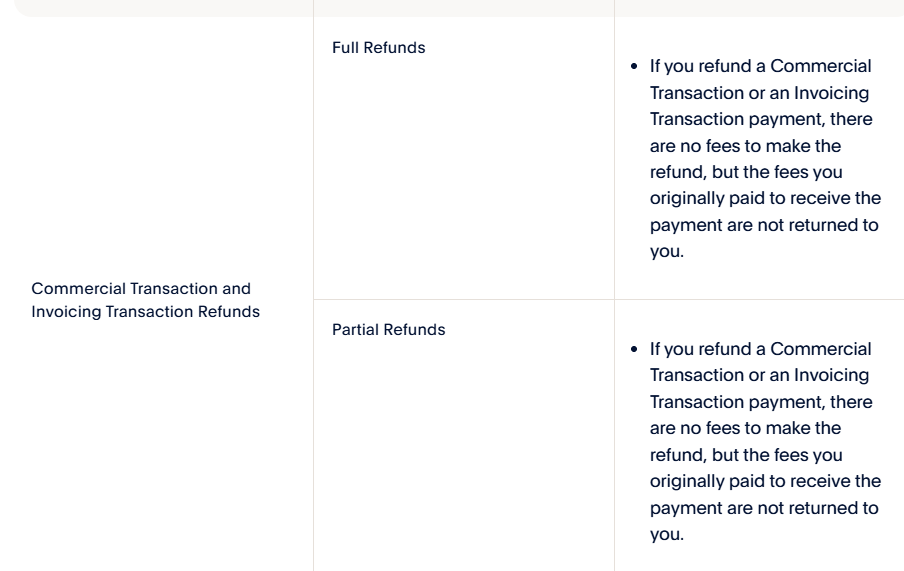
Under PayPal’s US merchant fee schedule, there is no separate fee to issue a full or partial refund of an eligible commercial or invoicing transaction. However, PayPal keeps the processing fees originally charged when the seller received the payment.
That distinction is important because issuing a refund without an additional refund fee does not mean the transaction costs the seller nothing.
| Fee or cost | Standard PayPal commercial refund treatment |
|---|---|
| Full refund issuance fee | No additional fee |
| Partial refund issuance fee | No additional fee |
| Original payment processing fee | Not returned to the seller |
| Currency conversion | May affect the amount charged or returned |
| Separate dispute or chargeback fees | Depend on the applicable case and fee rules |
Example: Refunding a $100 PayPal payment
Suppose a US seller receives a $100 domestic payment through standard PayPal Checkout. PayPal’s published standard receiving rate for that payment type is 3.49% plus a fixed fee of $0.49 for a US-dollar transaction.
The original processing fee would be $3.98, leaving $96.02 in proceeds from the $100 payment.
If the seller later issues a full $100 refund, the buyer receives the full refund amount, but PayPal does not return the original $3.98 processing fee to the seller. The seller therefore bears that processing cost even though the purchase was refunded.
The same principle applies to an eligible partial refund: issuing the refund does not cause PayPal to return the original processing fees.
Merchant processing rates vary by payment product, transaction type, and applicable account agreement. PayPal Point of Sale transactions can also follow different fee-reversal rules from standard online commercial payments.
See the official PayPal US Merchant Fees schedule for the applicable rates and commercial refund terms.
How Long Do You Have to Issue a PayPal Refund?
PayPal’s standard US refund procedure allows eligible full and partial refunds within 180 days of the original payment date.
The 180-day period is measured from the date of the payment, not the date the customer first requests a refund.
For example, if a customer asks for a refund several months after purchasing an item, the seller must check whether the original payment remains within PayPal’s refund window.
What happens after 180 days?
Once the standard refund window expires, the original payment is no longer eligible for the normal refund procedure. The Issue a refund option may therefore be unavailable.
If you still need to return the customer’s money, contact the customer and consider the available payment options or seek guidance from PayPal. A new payment may be possible, but it is a separate transaction rather than a refund of the original payment. Its fees, documentation, and protections may differ.
Some PayPal products have different refund deadlines. For example, PayPal Point of Sale publishes a separate refund process that allows eligible refunds up to 365 days after payment. The standard 180-day rule should not be applied to every PayPal payment product.
Refund deadlines and dispute-filing deadlines are separate rules. The expiration of the normal refund option does not automatically determine the outcome of a dispute or chargeback.
How to Issue a Refund During a PayPal Dispute
If the buyer has opened a PayPal dispute, the refund process is different from refunding an ordinary transaction through Activity.
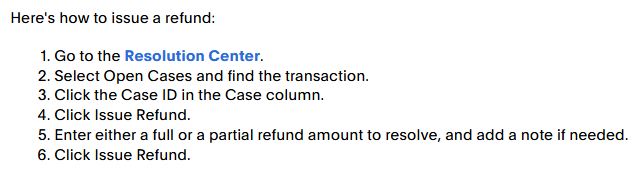
You can offer a full refund or a partial refund through the Resolution Center, where PayPal records the case and the proposed resolution.
- Sign in to PayPal and open the Resolution Center.
- Select Open Cases and locate the relevant dispute.
- Click the case ID to open its details.
- Select Issue Refund.
- Enter the full or partial refund amount and add a note if needed.
- Review the information and click Issue Refund.
What happens after a full refund?
According to PayPal’s dispute refund guidance, issuing a full refund automatically closes the dispute. The customer receives the refund through the applicable payment process.
What happens after a partial refund offer?
A partial refund offer requires the buyer’s acceptance to resolve the dispute. If the buyer accepts, PayPal closes the dispute. If you offer less than the amount the buyer requested, the buyer can accept or reject the offer.
The buyer normally has 10 days to respond to a partial refund offer before it expires. An offer that has not been accepted should not be treated as a completed resolution.
For the exact procedure, see PayPal’s official instructions for refunding a dispute.
Disputes, claims, and card chargebacks are not interchangeable processes. If a case has progressed beyond the initial dispute stage, follow the actions available in that specific case. Separate dispute or chargeback fees may apply under PayPal’s terms.
Can You Issue a Refund Without Enough PayPal Balance?
If your PayPal account does not have enough available funds to cover a refund, PayPal may display an insufficient-balance error or require you to add money before proceeding.
The available funding method depends on your account and the refund transaction. PayPal does not guarantee that every seller can automatically fund refunds through a linked bank account.
Some accounts may be restricted from using bank-funded refunds. PayPal explains that its systems can select or limit refund funding methods based on their likelihood of successful processing.
If you cannot complete a refund because of insufficient funds:
- Check your available PayPal balance and any error message displayed.
- Review the eligible funding options offered by PayPal.
- Add money to your PayPal balance if required and supported by your account.
- Allow the added funds to become available.
- Return to the original transaction or dispute and issue the refund.
Adding funds does not automatically complete a refund that previously failed. PayPal’s seller guidance states that you must manually issue the refund once the added money becomes available.
Before trying again, check whether the original refund was already submitted. This helps avoid duplicate refunds.
See PayPal’s seller refund funding guidance for more information.
How Long Does a PayPal Refund Take?
Issuing a refund and the customer receiving the money are not always simultaneous. PayPal normally returns the money to the original payment method, but banks and card issuers may require additional processing time.
| Original payment method | Typical refund timeframe |
|---|---|
| PayPal Balance | Usually returned to the balance on the same day |
| Bank account | Usually up to 5 business days; some refunds may take up to 30 days |
| Debit card | Generally up to 5 business days; some card issuers may take up to 30 days |
| Credit card | Up to 1–2 billing cycles, depending on the card issuer |
| Seller-funded eCheck refund | Usually up to 5 business days to clear, sometimes longer |
For payments originally funded using multiple methods, such as PayPal Balance and a credit card, the refund may be returned to those methods separately. Each portion can have a different processing time.
If a customer’s original card is canceled or has expired, PayPal still attempts to send the refund to that card. The customer may need to contact the card issuer to access the money.
Refunds involving currency conversion can also result in a different amount after conversion because the exchange rate used for the refund may differ from the original payment rate.
These timeframes and conditions are explained in PayPal’s refund tracking and processing guide.
How to Check the Status of a PayPal Refund
After issuing a refund, you can use PayPal Activity to check its details and confirm whether processing has progressed.
- Sign in to PayPal and open Activity.
- Click Filters and select Refunds.
- Choose the relevant date range.
- Select the refunded transaction to view its details and available status information.
Common refund statuses include:
| Refund status | Meaning |
|---|---|
| Pending | The refund was issued but is still awaiting processing or bank clearance. |
| Temporary hold | The original payment or funding transaction has not fully cleared. |
| Refunded | PayPal has sent the refund back toward the original payment method. |
| Partially refunded | Only part of the original payment has been refunded. |
| Completed | The refund has completed and the money has been returned to the applicable payment method. |
| Canceled | The refund could not be processed. |
PayPal also provides a Refund Tracker for eligible full-amount checkout refunds originally funded by a bank account or card. The tracker does not apply to every transaction, including certain partial refunds and payments split between funding methods.
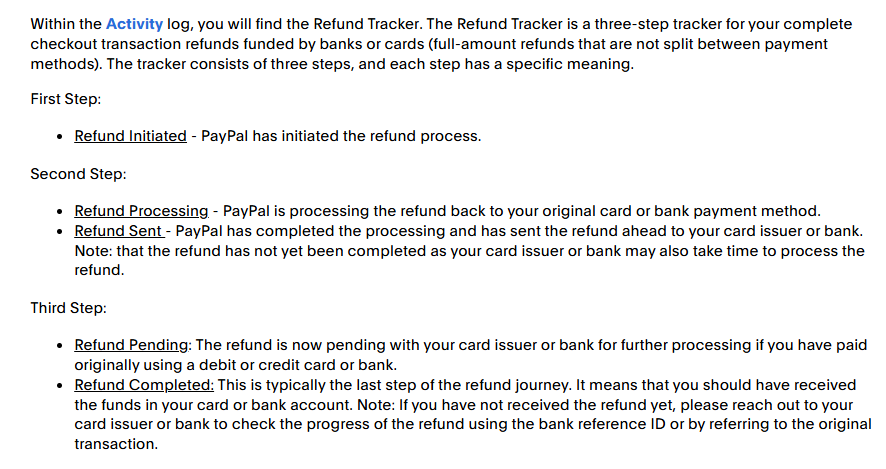
A refund marked as sent by PayPal may still be awaiting processing by the customer’s bank or card issuer. If the customer has not received the money within the applicable timeframe, the transaction details and any available bank reference ID can help with further inquiries.
Why Can’t You Issue a PayPal Refund?
If the Issue a refund button is missing or PayPal does not complete the transaction, several conditions may be responsible.
The refund window has expired
For standard eligible PayPal payments, the normal refund option is available for 180 days after the original payment. If that period has expired, the original transaction may no longer support a refund.
The payment has already been refunded
A transaction that has been fully refunded cannot be refunded again through the same original payment. Check Activity before making another attempt. For a partially refunded transaction, any additional refund depends on the remaining refundable amount and the payment product’s rules.
An open dispute requires a different procedure
If the buyer has opened a dispute, use the Resolution Center and the available case options instead of assuming the ordinary Activity refund process applies.
The refund amount is unavailable
PayPal may reject a refund if the requested amount exceeds what remains eligible for refund or your account lacks sufficient available funds. Check the transaction history, refund amount, and available funding options.
The payment was processed through another PayPal product
Payments made through an ecommerce platform, PayPal Point of Sale, or a custom checkout integration may have a different refund workflow.
For example, a payment that has been authorized but not captured may need its authorization voided rather than refunded. PayPal’s payment integration documentation distinguishes voiding uncaptured authorizations from refunding completed captures.
Check the original payment system before issuing a separate refund. PayPal’s refund integration documentation explains how captured payments can be refunded through supported APIs.
If you are using the PayPal app and cannot find the necessary refund controls, sign in through the website to follow the documented Activity procedure. An account limitation or unresolved verification request may also require attention before a refund can proceed.
What Should Sellers Do After Issuing a Refund?
Once you have issued a refund, verify its status and retain the relevant transaction details for your business records.
Save the original payment ID, refund amount, refund date, and confirmation information. If the refund relates to a returned item, canceled order, or partial settlement, keep the corresponding order details and customer communication together.
Let the customer know when the refund has been issued and explain that the money may take additional time to appear in their bank or card account. Avoid promising a completion date that depends on a financial institution outside your control.
If the refund remains pending, check its status before submitting another transaction. If it fails, review the available error information and resolve the underlying issue rather than repeatedly attempting the same payment.
For most standard PayPal seller transactions, the simplest approach is to refund directly from the original payment in Activity. Use the Resolution Center for an open dispute, verify the amount before confirmation, and account for the original processing fees that PayPal retains. This provides a clear refund record while helping the customer understand when and where the money will be returned.