
To calculate PayPal fees manually, multiply the gross payment by the applicable percentage expressed as a decimal, add any fixed fee, then subtract the calculated fee from the payment. For an uncapped percentage-plus-fixed-fee structure, use:
Fee = payment amount × decimal rate + fixed feeNet received = payment amount − fee
For example, a $100 domestic PayPal Checkout payment at 3.49% + $0.49 produces a $3.98 fee and a $96.02 net receipt. That rate comes from PayPal’s US business pricing; it is not the rate for every PayPal payment.
The examples below use US recipient accounts and USD. They estimate receiving fees, not business profit or the final amount transferred to a bank. Use the rate for your own account, payment product, and currency before substituting numbers.
Find the correct PayPal rate before calculating
Start with the payment’s product name, receiving currency, and the account markets involved. These determine which fee inputs to look up. A payment denominated in dollars does not automatically qualify for US domestic pricing.
| Domestic US payment product | Percentage | Fixed fee in USD |
|---|---|---|
| Send/Receive Money for Goods and Services | 2.99% | None |
| PayPal Checkout | 3.49% | $0.49 |
| Standard Credit and Debit Card Payments | 2.99% | $0.49 |
| Advanced Credit and Debit Card Payments | 2.89% | $0.29 |
Goods & Services is not a single label for every checkout fee. The named send/receive route has its own pricing. Do not add another product’s fixed fee to it or select a card-processing rate solely because the buyer says they funded their payment with a card.
Likewise, an invoice can be paid through different methods. Match the method used to the relevant row in PayPal’s invoicing fee table, rather than assuming every invoice uses the same percentage.
For a completed transaction, check the pricing that applied on its date. For a new estimate, check the currently effective schedule and any pricing agreed for your account. Also, calculating fees manually is different from manually entering a customer’s card details; the latter is a payment channel, not this calculation method.
How to calculate PayPal fees manually: a worked example
Use a $50 domestic PayPal Checkout payment to work through the method. The inputs are the Checkout rate shown above: 3.49% and a $0.49 fixed fee. This example also shows how to handle a result containing a fraction of a cent.
1. Identify the gross payment amount
The gross amount, represented by G, is the payment before the receiving fee is deducted. Here, G = $50.00. Do not start with the amount left after fees.
Use the total actually processed, not merely the item subtotal. PayPal’s order amount definition includes the applicable item, tax, shipping, and other components, less discounts. If shipping or tax is already included in your recorded gross payment, do not add it again.
2. Convert the percentage to a decimal
Divide the percentage number by 100. If p is the percentage number and r is the decimal rate, then r = p ÷ 100.
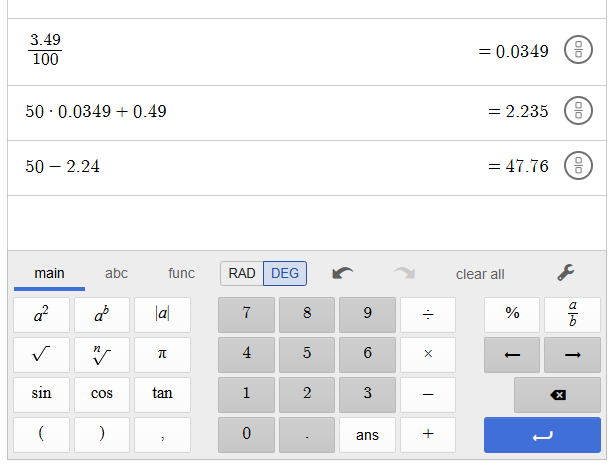
3.49 ÷ 100 = 0.0349
Enter 0.0349 when multiplying. Entering 3.49 instead would make the percentage component 100 times too large. Using the decimal avoids relying on how a particular calculator’s percentage button works.
3. Multiply, then add the fixed fee
First calculate the percentage component:
50 × 0.0349 = 1.745
Then add the fixed fee, represented by f:
1.745 + 0.49 = 2.235
The unrounded fee is $2.235. The fixed fee is an amount of money, not another percentage: add $0.49 after calculating the percentage component.
4. Round the fee and subtract it from the gross
These USD examples round the calculated fee to the nearest cent, with half cents rounded up. This is the convention used for the estimates here, not a claim about an undocumented rounding rule for every PayPal product.
Estimated fee, F = $2.24Estimated net, N = $50.00 − $2.24 = $47.76
Keep the full precision during the calculation, then subtract the rounded fee. Do not independently round the unrounded fee and unrounded net: your displayed figures should satisfy fee + net = gross.
For a percentage-only product, use f = 0. Applying the table’s Goods & Services send/receive rate to $50 gives 50 × 0.0299 = 1.495: an estimated $1.50 fee and $48.50 net under the same rounding convention.
Work backward to receive a specific amount
The forward calculation starts with what the customer pays. The reverse calculation starts with what you want to retain after the processing fee.
Using N for the target net, G for gross, r for the decimal rate, and f for the fixed fee, the relationship before rounding is:
N = G − (G × r + f)N = G × (1 − r) − f
Rearranging gives:
Unrounded required gross:G = (N + f) ÷ (1 − r)
Example: a payment that leaves $100 after Checkout fees
Using the same domestic Checkout inputs, substitute a $100 target:
(100 + 0.49) ÷ (1 − 0.0349)= 100.49 ÷ 0.9651≈ 104.123925
A payment must be expressed in cents for this USD example. Try $104.12, then check it using the forward calculation:
104.12 × 0.0349 + 0.49 = 4.123788Rounded fee = $4.12Net = $104.12 − $4.12 = $100.00
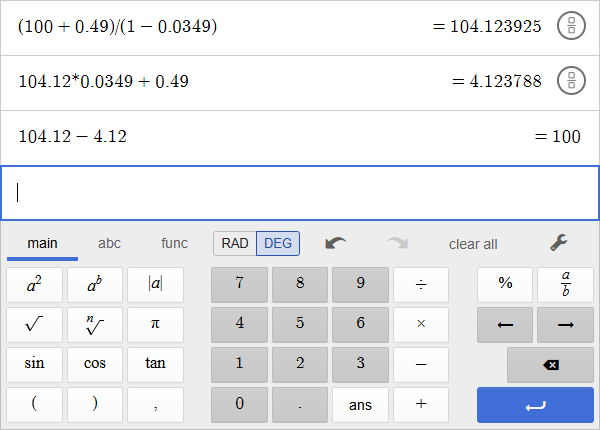
The candidate reaches the target under this model. For another target, if your cent-rounded candidate leaves too little, increase it by $0.01 and recalculate.
Always rounding the unrounded gross upward would produce $104.13 here, leaving $100.01 under the same fee-rounding convention. That is a conservative estimate, not proof that $104.13 is the minimum. Your actual deduction still depends on the applicable account terms and rounding.
Why adding the fee to your target falls short
Adding the fee calculated on $100 gives 100 + 3.49 + 0.49 = $103.98. But the percentage now applies to $103.98, not $100.
The resulting fee rounds to $4.12, leaving $99.86. The reverse formula accounts for the percentage charged on the larger payment.
A reverse calculation is not permission to impose a payment surcharge. PayPal’s US User Agreement prohibits a surcharge for accepting PayPal. Use the calculation to understand your costs and plan pricing, not as authorization to add a PayPal-only charge.
Adjust the calculation for international payments
PayPal distinguishes domestic and international transactions by the parties’ account markets. For the US commercial Checkout scenario, the merchant schedule adds 1.50 percentage points for an international receipt.
For a US account receiving a $100 Checkout payment in USD from an international payer, without conversion in the receiving calculation:
Combined rate = 0.0349 + 0.015 = 0.0499Fee = 100 × 0.0499 + 0.49 = $5.48Net = 100 − 5.48 = $94.52
The additional 1.50% applies to the payment amount in this scenario, not to the domestic processing fee. Do not multiply the $3.98 domestic fee by 1.5%.
Calculate currency conversion separately
An international payment does not necessarily involve conversion for the recipient. When conversion does occur, PayPal’s transaction exchange rate includes a conversion spread and changes over time.
Identify the amount being converted and the direction of the quote. If a quote expresses destination-currency units per one source-currency unit, multiply the source amount by that rate. Use the amount from the relevant conversion stage, which may differ from the original gross receipt.
Do not mix currencies in one subtraction or add a conversion spread again when it is already reflected in the quoted rate. A later withdrawal or conversion also needs its own calculation; it is not included in the processing-fee net above.
Change the method when a fee is capped
The basic uncapped formula does not cover every product. For example, domestic invoice Pay by Bank has a published rate of 1%, capped at $10 per transaction, according to PayPal’s invoicing schedule.
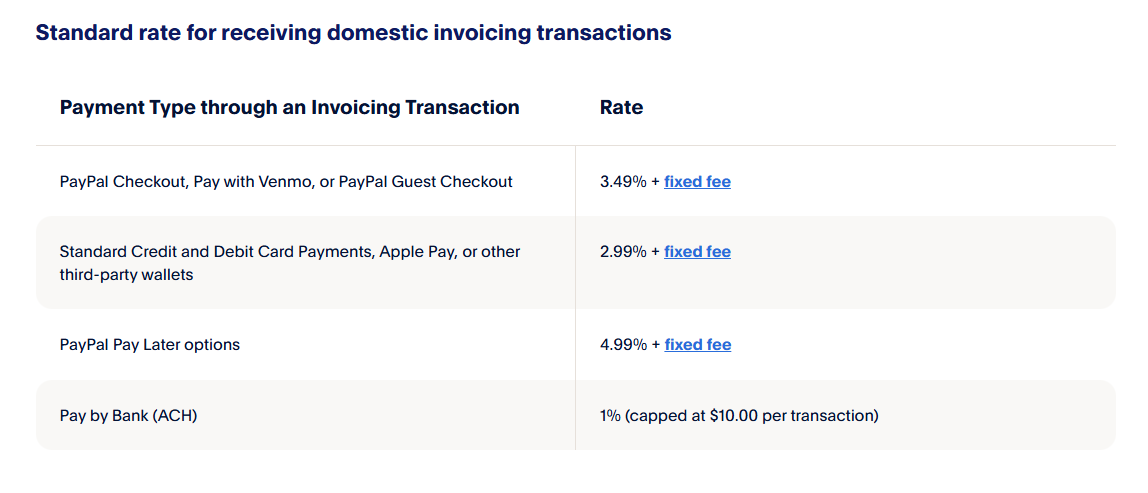
For a $1,500 payment under that rate:
Percentage calculation = 1,500 × 0.01 = $15.00Apply the cap: fee = $10.00Net = $1,500.00 − $10.00 = $1,490.00
For this domestic example, the fee is the smaller of the percentage calculation and $10. Do not add a fixed card-processing fee or transfer this cap to Checkout. A capped reverse calculation must also account for the cap rather than blindly using the uncapped formula.
Calculate multiple payments individually
When the fee structure includes a fixed charge per transaction, the number of payments matters. Ten payments are not equivalent to one payment of the same combined value.
Using the domestic Checkout inputs and rounding convention above, each $10 payment has a fee of 10 × 0.0349 + 0.49 = $0.839, rounded to $0.84. Ten such payments cost $8.40 in total, compared with $3.98 for a single $100 payment.
For an uncapped model with the same rate across all payments, the unrounded total is r × total gross + number of payments × f. However, round each transaction’s fee before summing when estimating cent-denominated charges.
In the ten-payment example, the aggregate unrounded formula gives $8.39, while summing the individually rounded fees gives $8.40. That difference comes from the calculation sequence, not a different percentage.
Check your result against PayPal’s transaction record
For a completed payment, compare your estimate with the recorded transaction rather than a bank deposit that may combine several payments. PayPal’s Activity Download report includes Gross, Fee, and Net fields.
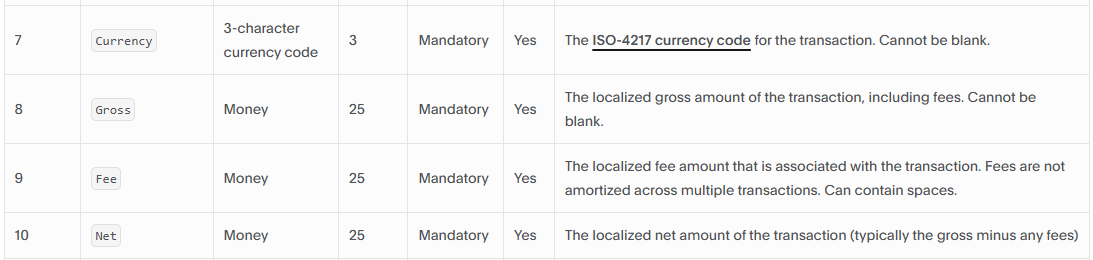
To obtain a report, PayPal’s download instructions direct you to History → download icon → Custom. Select an appropriate report and date range, generate it, and download it when ready. CSV is one supported format.
For a simple receipt in one currency with no other deductions, you can check the fee amount using gross − net. A gross of $100 and net of $96.02 imply a $3.98 deduction.
Watch the sign in an export. If a fee is stored as −3.98, reconcile it as 100 + (−3.98) = 96.02. Do not subtract a negative fee again. The examples in this guide treat fees as positive costs.
Why the effective fee percentage can look higher
The effective percentage measures the entire fee against the gross payment:
Effective fee percentage = F ÷ G × 100
For the $50 Checkout example, 2.24 ÷ 50 × 100 = 4.48%. That exceeds the 3.49% percentage component because the total includes the fixed fee and rounding.
This ratio describes the cost of that payment; it does not identify the underlying tariff by itself. A higher effective percentage is not automatically evidence that PayPal changed your rate.
What to check when the numbers do not match
- Payment product: confirm the actual receiving route, not just whether the purchase involved goods or services.
- Market and currency: check the recipient’s account market, international status, and the fixed fee for the currency received.
- Applicable pricing: use the terms for the transaction date, including any account-specific rates, caps, or other adjustments.
- Amount and arithmetic: verify the gross payment, decimal conversion, fixed-fee addition, rounding, and any negative signs in the report.
- What you are comparing: separate the original receiving fee from currency conversion, withdrawals, refunds, or other transaction events.
Keep the transaction date, fee source, and calculation together. If a difference remains after those checks, ask PayPal to explain the deduction for that transaction rather than assuming it is a rounding error.
Last verified: October 18, 2026.